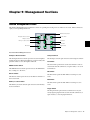
1
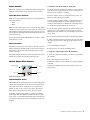
Soft Keys Section
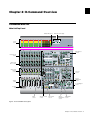
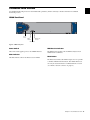
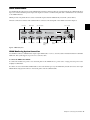
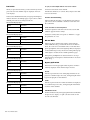
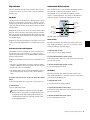
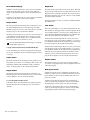
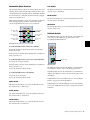
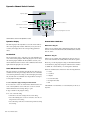
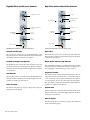
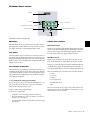
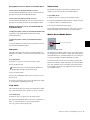
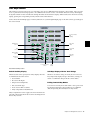
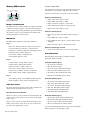
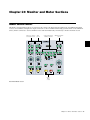
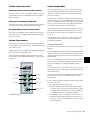
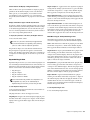
The Soft Keys section provides access to a wide range of Pro Tools commands directly from the control surface. It also provides
access to preferences and settings specific to D-Command. The section consists of six variable-function soft keys and displays,
along with a matrix of mode switches that change the functions shown in the displays. When a function is shown in a Soft Key
display, pressing the corresponding Soft Key switch activates that function.
Some controls invoke multiple pages of Soft Key functions. To cycle through multiple pages of the same control, repeatedly press
the control switch.
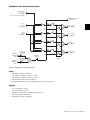
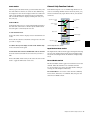
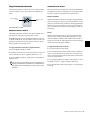
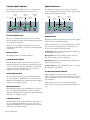
Soft Key switches
and
displays
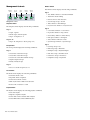
Management
controls
Audio Files
switch
Edit
controls
Show/Hide
switch
Memory/MIDI
controls
Track Size
switches
Automation
controls
Console Preference
controls
Utility
switch
D-Command Soft Keys section
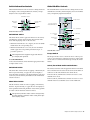
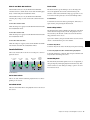
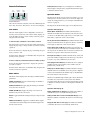
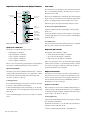
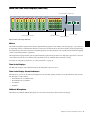
Default Soft Key Display
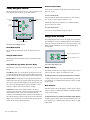
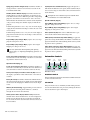
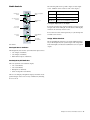
Soft Keys Display with Pro Tools Dialogs
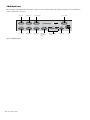
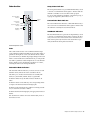
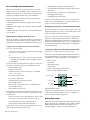
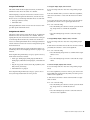
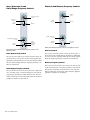
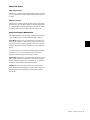
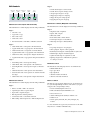
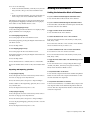
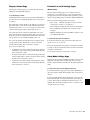
When a session is first opened, the Soft Key displays show basic information about the session:
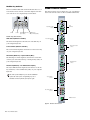
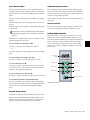
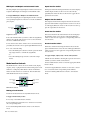
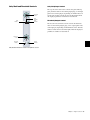
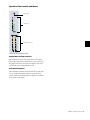
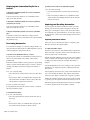
When Pro Tools has a dialog on-screen, the two lower Soft
Keys temporarily display “Escape” and “Enter,” letting you
cancel or confirm the dialog from the control surface.
• Session Name
• Bit: Session Bit Depth
• Sampl: Session Sample Rate
• File: Session File Type
• Tcode: Session Time Code Rate
• Delay Compensation On/Off Status
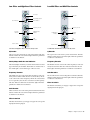
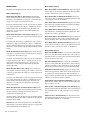
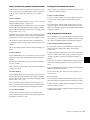
Exiting from Soft Key Modes
You can exit a Soft Key mode and return to the top level Soft
Key display by holding Control (Windows) or Command
(Mac) and pressing the currently lit Soft Key switch.
Delay Compensation can be toggled on and off from this display. The other settings shown above cannot be changed from
the Soft Keys section.
Chapter 9: Management Sections 79