1
Playing Tracks
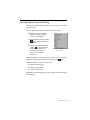
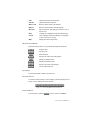
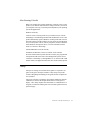
To start playing a track, click the Play button
.
To stop playing a track, click the Stop button
.
Playing a Particular Track
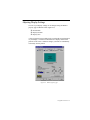
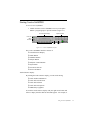
To play a track using the Fast Track selector:
1. Click a number button on the Fast Track selector to select that
track. To select a two-digit track number, click both numbers
consecutively within two seconds. For example, to choose track
15, click button 1 and then button 5.
Playing the Track at a Different Position
To play a track from a certain position:
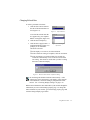
1. Click and hold down the left mouse button on the Graphic slider
and move it to the position you want to start playing the track.
2. When the highlighted portion of the Graphic slider reaches the
desired position, release the mouse button. If the player is
already playing, it immediately moves to the new position.
3. If your player is not playing, click Play to start playing the track
from the position you have chosen.
Pausing and Resuming Playback
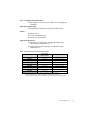
Click the Pause button
Click the Play button
to pause.
or Pause button again to resume playing.
Changing to a Different Track
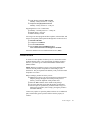
To change to the next track in the playlist, click the Skip Forward
button
.
To change to the previous track in the playlist, click the Skip Backward
button
.
Moving Forward and Backward Within a Track
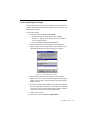
You can also move forward and backward within a track:
! Click the Fast Forward
or Rewind button
.
! Move the Graphic slider to the track that you want.
Using Creative SoftMPEG
5-6