1
Color Settings Tab
Page 554 of 817 pages
Advanced Guide > Scanning > Scanning with Other Application Software > ScanGear (Scanner Driver) Screens > Color
Settings Tab
Color Settings Tab
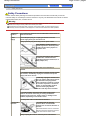
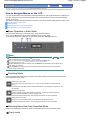
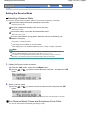
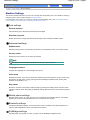
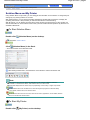
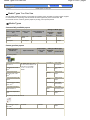
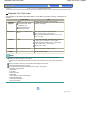
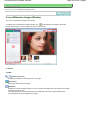
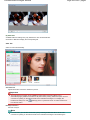
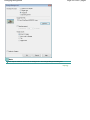
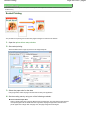
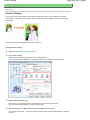
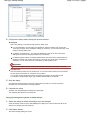
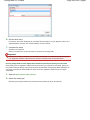
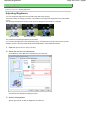
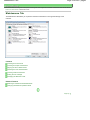
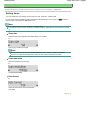
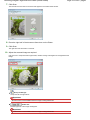
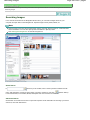
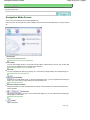
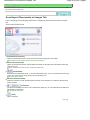
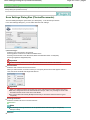
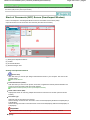
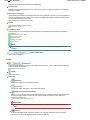
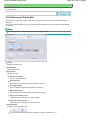
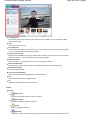
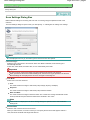
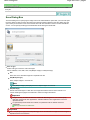
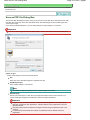
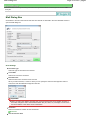
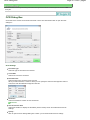
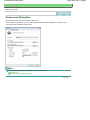
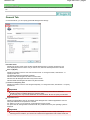
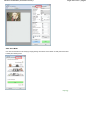
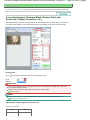
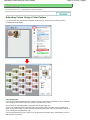
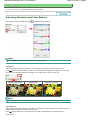
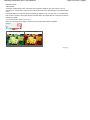
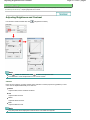
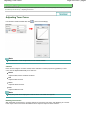
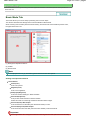
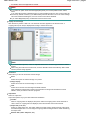
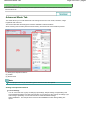
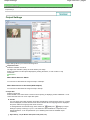
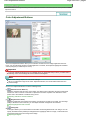
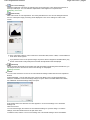
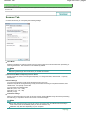
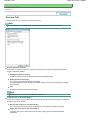
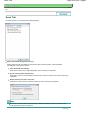
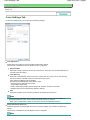
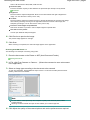
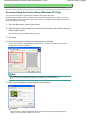
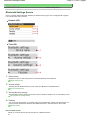
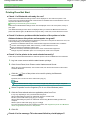
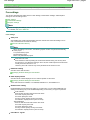
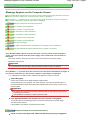
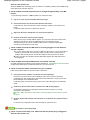
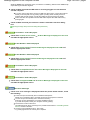
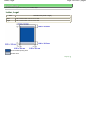
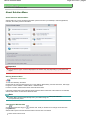
On the Color Settings tab, you can specify the following settings.
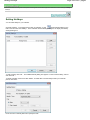
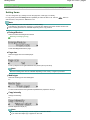
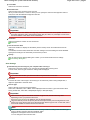
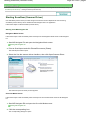
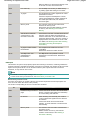
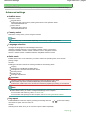
Color Adjustment
Select either of the following. Recommended is selected by default.
This function is available when Color Mode is Color or Grayscale.
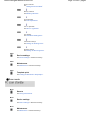
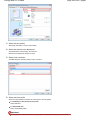
Recommended
Select this to vividly reproduce the tone of a document on the screen. It is recommended that you
normally select this setting.
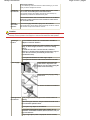
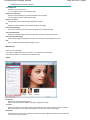
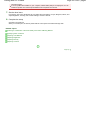
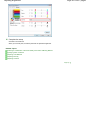
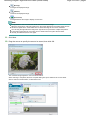
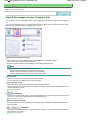
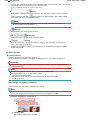
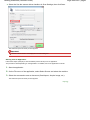
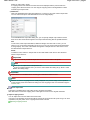
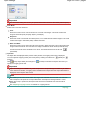
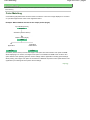
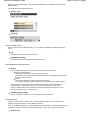
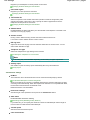
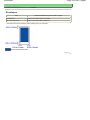
Color Matching
Select this to automatically match the scanner, monitor and color printer colors, thus reducing
time and trouble to manually match the monitor and printer colors.
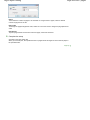
Color Adjustment Buttons will be disabled.
This function is available when Color Mode is Color.
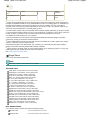
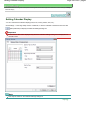
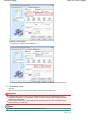
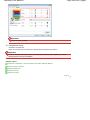
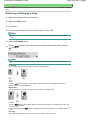
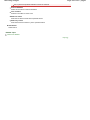
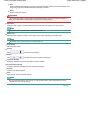
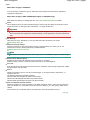
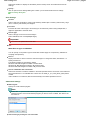
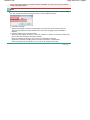
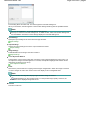
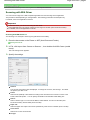
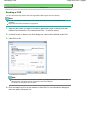
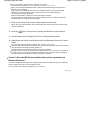
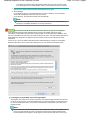
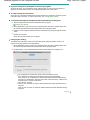
- Source(Scanner): Select scanner profile.
- Target: Select target profile.
- Monitor: Select this to display preview image with optimum correction for monitor.
- Defaults: Returns to the default Color Matching settings.
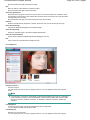
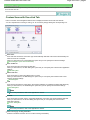
None
Select this to disable color correction provided by ScanGear (scanner driver).
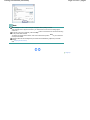
Note
Color Matching is available when ScanGear (scanner driver), monitor, color managementcompliant application (such as Photoshop) and printer are set up correctly.
Refer to the corresponding manual for the monitor, printer and application settings.
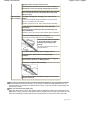
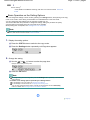
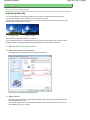
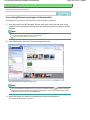
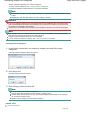
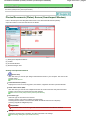
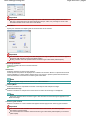
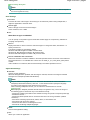
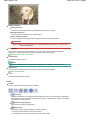
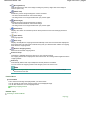
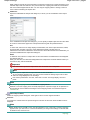
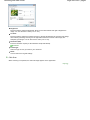
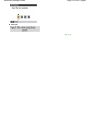
Always Execute the Auto Tone
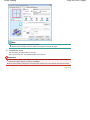
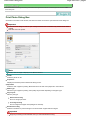
Select this checkbox to always apply Auto Tone to scanned images. This checkbox is selected by
default.
This function is available when Color Mode is Color or Grayscale.
Note