1
XVII. Touch Calibration
IMPORTANT: It may take a number of attempts to complete calibration. DO NOT give
up. If asked to start again, then keep going until you have success. Interrupting the process by powering off the unit can LOCK UP THE TOUCH SCREEN making it
impossible to unlock again from the lock screen after restarting the unit. If this occurs,
you will need to restore the unit to factory condition. See section XV for help with this
process.
We do not recommend recalibrating unless you are having a significant issue.
Each Cruz’s calibration was already optimized prior to shipment.
If you believe you are having a significant issue, begin by laying the Cruz flat on its
back and finding a writing implement to use as a stylus. A closed retractable ball-point
pen works well. Be as precise as possible, and be careful not to accidentally touch any
other part of the screen during the calibration process.
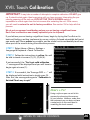
STEP 1: Select Home > Menu > Settings >
Language & Keyboard > Touch Calibration
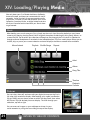
STEP 2: Follow the instructions in yellow. You will
be told to touch at crosses (1), (2), (3), & (4).
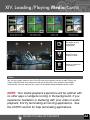
If not successful, the “Can’t get valid calibration
...” message will be displayed and you will have to
begin again at cross (1).
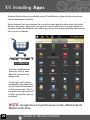
STEP 3: If successful, the “Average DIFF = ... “ will
be displayed with instruction to touch cross (5).
After this, the message changes to “Calibration is
finished! Touch any to quit.”
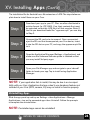
HERE’S A TIP!
Using a stylus or pen can aid in this
process by enhancing the accuracy
of your touches. However, make sure
the instrument you use does not have
a metal point, as this could lead to
scratching the touch screen!
RETURN TO TABLE OF CONTENTS
26