1
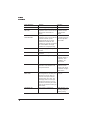
Status
Messages
4
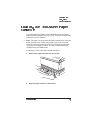
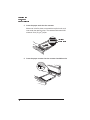
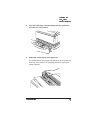
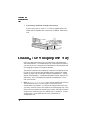
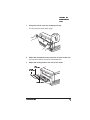
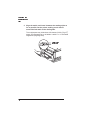
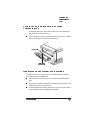
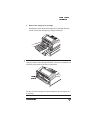
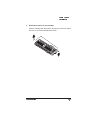
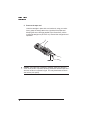
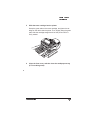
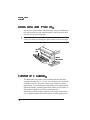
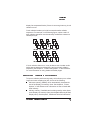
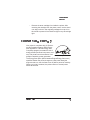
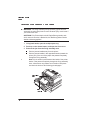
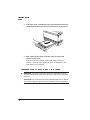
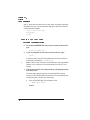
Remove the print media from the paper pick-up area by pulling in the direction of the arrow.
5
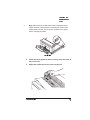
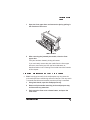
If the jam has been cleared, close the front door and printing
will restart.
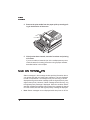
If you are unable to locate the jam in the multipurpose tray area,
check the areas for locating jams when using a paper cassette,
described earlier in this chapter.
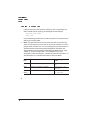
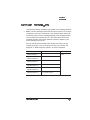
Status Messages
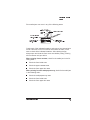
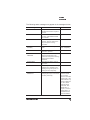
Status messages in the message window provide information about
your printer and help you locate many problems. They are displayed
in order of importance. If a message is only one line long, it can be
displayed along with another message (with the highest priority message on the top line). However, if either message is two lines long, only
the highest priority message is displayed. When the condition associated with a displayed message has changed, the message is cleared
from the window, and the next highest priority message is displayed.
»
6-8
Note: Status messages are not displayed while the printer is off line.
QMS 1660 Print System Operation