1
Contents
Contents
1
1
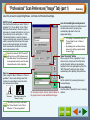
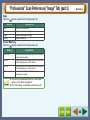
"Professional" Scan Preferences ("Image" Tab)
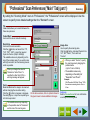
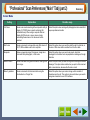
"Professional" Scan Preferences ("Preference" Tab)
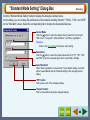
"Standard Mode Setting" Dialog Box
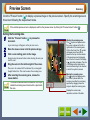
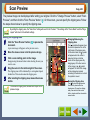
Preview Screen
2
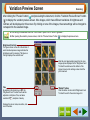
Variation Preview Screen
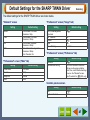
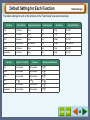
Default Settings for the SHARP TWAIN Driver
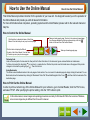
How to Use the Online Manual
How to Control the Online Manual
How to Print Out the Online Manual
41
43
44
45
Setting the Scanning Area
Print
Printer Properties
Outline of the Printer Driver
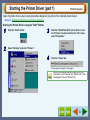
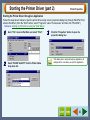
Starting the Printer Driver
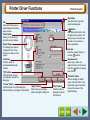
Printer Driver Functions
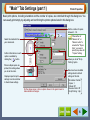
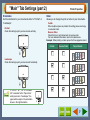
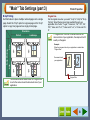
"Main" Tab Settings
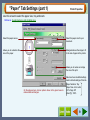
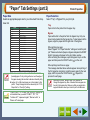
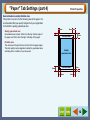
"Paper" Tab Settings
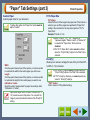
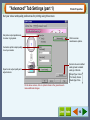
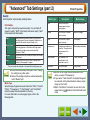
"Advanced" Tab Settings
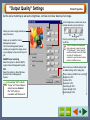
"Output Quality" Settings
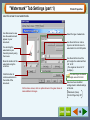
"Watermark" Tab Settings
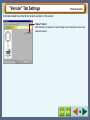
"Version" Tab Settings
Print
Utility Software
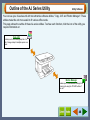
Outline of the AJ Series Utility
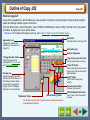
Copy JX2
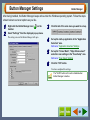
Button Manager
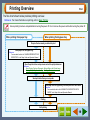
Printing Overview
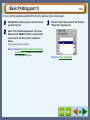
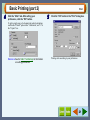
Basic Printing
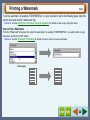
Printing a Watermark
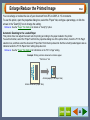
Enlarge/Reduce the Printed Image
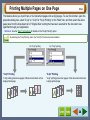
Printing Multiple Pages on One Page
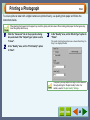
Printing a Photograph
26
Outline of the Print Status Window
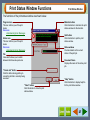
Print Status Window Functions
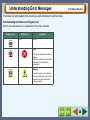
Understanding Error Messages
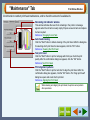
"Maintenance" Tab
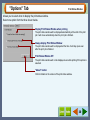
"Options" Tab
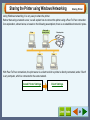
Sharing Printer
66
67
70
71
72
75
Troubleshooting
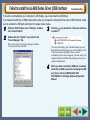
Failed to Install the AJ-6000 Series Driver (USB Interface)
31
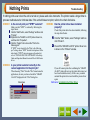
Nothing Prints
34
Faint, Uneven or Smeared Print Output
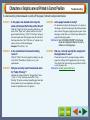
Characters or Graphics are not Printed in Correct Position
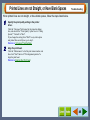
Printed Lines are not Straight, or Have Blank Spaces
Unit does not Print in Colour
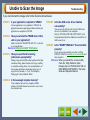
Unable to Scan the Image
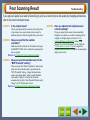
Poor Scanning Result
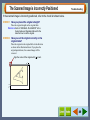
The Scanned Image is Incorrectly Positioned
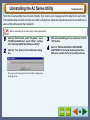
Uninstalling the AJ Series Utility
Scanning
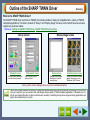
What is the SHARP TWAIN Driver?
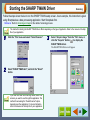
Starting the SHARP TWAIN Driver
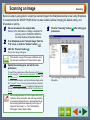
Scanning an Image
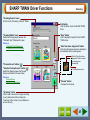
SHARP TWAIN Driver Functions
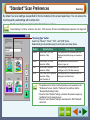
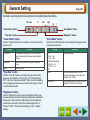
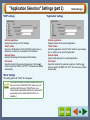
"Standard" Scan Preferences
"Professional" Scan Preferences ("Main" Tab)
Time to Change the Ink Tank
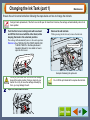
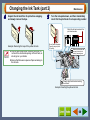
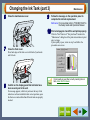
Changing the Ink Tank
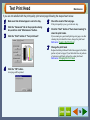
Test Print Head
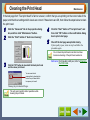
Cleaning the Print Head
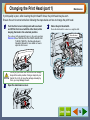
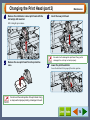
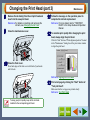
Changing the Print Head
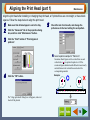
Aligning the Print Head
Identifying Unit Problems
77
Check the Connection between the Unit and Computer 78
Check Your Computer
79
Sharing the Printer using Windows Networking
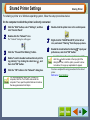
Shared Printer Settings
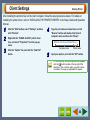
Client Settings
Outline of the SHARP TWAIN Driver
48
49
59
Maintenance
19
Print Status Window
46
47
35
36
37
38
39
81
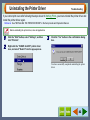
Uninstalling the Printer Driver
83
84
85
86
87
88
89
90