1
How to Print (part 2)
5
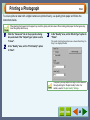
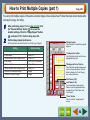
Set the number of copies to print.
Click the "Copies" on the information area, and use the
numbered buttons (0-9), or your computer's keyboard to
input the number of copies required. To change the set
number of copies, click the "Number Clear" button and enter
the correct number (1 - 50 copies).
Copy JX2
6
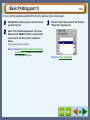
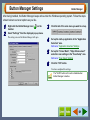
Click the "Start" button ( ).
The printer settings dialog box will open. Set the print
conditions as required.
Click the "OK" button. Printing will be started after scanning
the document.
Reference: Refer to Printer Properties for the detail of
the printer settings dialog box.
If you want to cancel a print job, click the "Copy and
Scan preview stop" button, or press the [Esc] key. If
you have already sent the print data to the printer
driver, follow the printer driver instructions to cancel
print job.
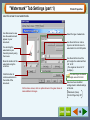
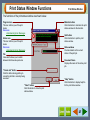
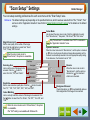
Contents of the Information Area
Information
Displays name of the portion
on which your mouse pointer is
placed.
Image Size Information
Displays the size of clipping area
specified the preview image.
Copies
Set the number of copies to be
printed here.
Default setting is "01".
Indicates the procedure of scanning process and data transfer to the printer
driver with figures of 0% - 100%.
51