1
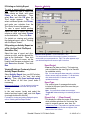
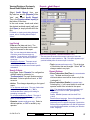
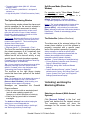
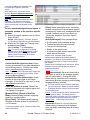
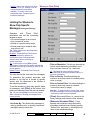
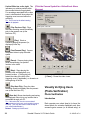
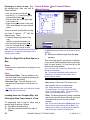
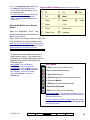
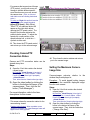
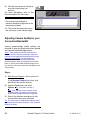
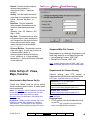
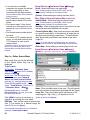
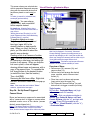
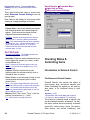
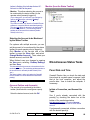
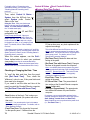
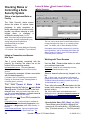
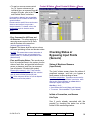
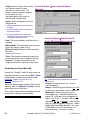
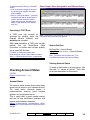
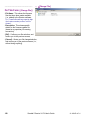
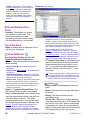
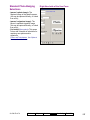
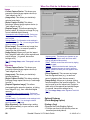
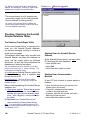
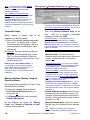
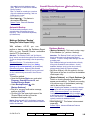
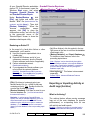
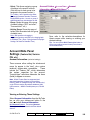
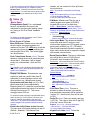
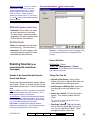
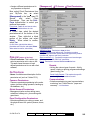
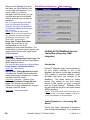
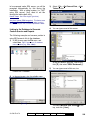
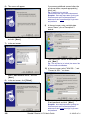
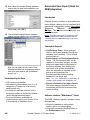
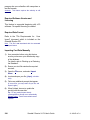
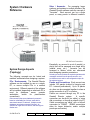
----------------------------------------------- On This Screen: This shows various physical status aspects for the specific panel. - [Print]: This allows printing the onscreen diagnostic data. Control & Status Panel Control & Status System [Get System Status] Tip: A print-setup screen will appear— allowing you to select a printer, and set up the print-job as desired. - [OK]: This saves the on-screen data (internally), and closes the Remote Diagnostics screen. Tip: You can also run reports based on previous status/diagnostic sessions. Related: Reports, Panel Diagnostic Reporting on Panel Diagnostics Note: The Director software retains 24 months worth of diagnostics sessions, or the last 100—whichever is greater. Checking the Status of Panels (Equipment) Panel Status (Equipment) Conditions Monitored for Each Panel Various conditions (such as low battery, tampering, etc.) can be monitored for each panel. This helps to maintain the integrity of each system panel. Also See: Control & Status, Panel Control & Status, System, Power Checking Power Levels Items to be Monitored: To set the conditions to be monitored for a panel, refer to "Equipment Settings (Pseudo / Internal Inputs)". Initiate a Connection, and Access this Topic See if you're already connected with the panel(s) by checking the status bar at the bottom of the monitoring window. Multi-Account Systems: First select [Account Folders] in the 'tree', and double-click the desired account. If not presently connected, initiate a connection with the desired panel(s). For details, refer to "Connecting to the Associated Panel(s), An Overview" (under "Checking Status & Controlling Items", previous). ------------------------- Then, select Control & Status - Equipment from the MyTools bar, or select Equipment under "Control & Status: System" in the 'tree'. Using the Tree: Click your site/account button in the tree, and open Control & Status, Panel Control & Status, and System (click the "+" beside each topic). 74 Guardall Director V4.74 User's Guide 21-0381E v4.7.4