1
V 1
P R O F E S S I O N A L
5 . 5
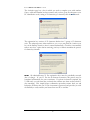
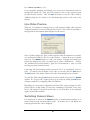
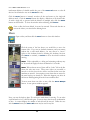
Your Inbox contains a list of the new videos which students have assigned to you.
Click a video to highlight it, and then click either Accept or Reject. If accepted, the
video is moved to your Accepted page, and transfer of the file from the Academy will
begin immediately if you’re logged in. If rejected, this video is moved to your History
page. In either case, the student will be informed of your decision via email.
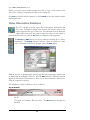
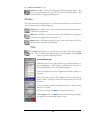
When you are done accepting and rejecting videos, you may now use the Login button
to connect to the Academy, and then visit the Accepted page to “watch” your videos
arrive, or click the Hide button to close the window. When the transfer and unpacking
of a video is completed, it will be added as a tab in your Current bin with a Tab ID
reflecting the Academy serial number. The process of importing these videos will also
automatically create the appropriate new student records in your V1’s database as
necessary.
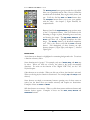
As an added video organization feature, videos assigned to the current instructor which
require lessons are also listed in the Results bin. In this way, the Results bin acts as
your Academy “to do” list. Tabs are removed from the Results bin when they are
analyzed (or manually moved out of the Current bin).
Recording an Internet Lesson
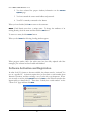
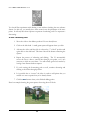
Lessons may either be performed “on-site” or performed in response to
videos sent to you through the Academy. To respond to a received video,
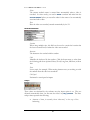
open the video to be analyzed, and then select the Academy button from
the Record pop-up menu. To perform an “on-site” lesson, open a student’s video
(not received through the Academy) or a model video, select your student as the
Current Student, and then select the Academy button from the Record pop-up
menu. The student must have a valid email address in his student record.
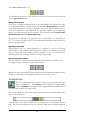
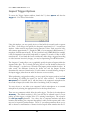
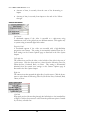
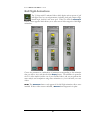
Begin your lesson immediately. Your lesson cannot exceed 10 minutes in duration. A
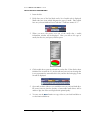
10 minute countdown timer will begin on the V1 window. To the right of the
countdown timer is a graphical display of recorded audio activity.
The audio meter is not real-time, but if you see no movement of the display, you may
not have your microphone configured correctly—please consult the previous section.
67