1
K-2
Program Registration Codes
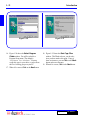
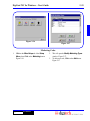
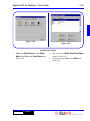
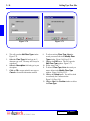
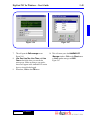
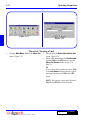
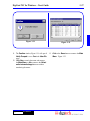
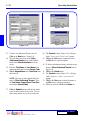
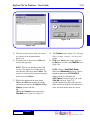
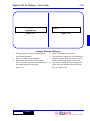
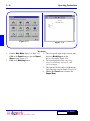
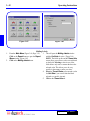
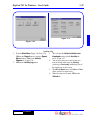
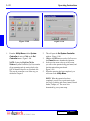
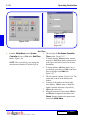
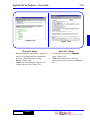
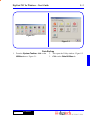
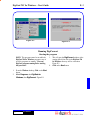
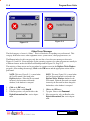
Figure K-1
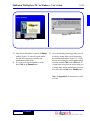
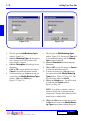
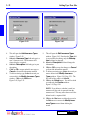
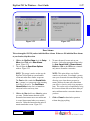
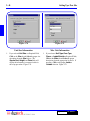
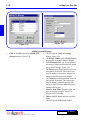
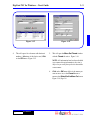
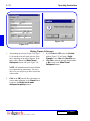
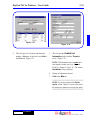
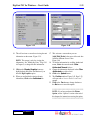
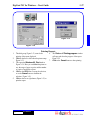
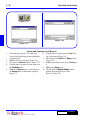
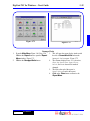
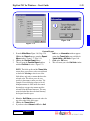
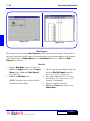
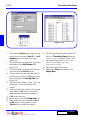
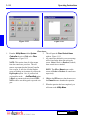
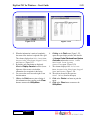
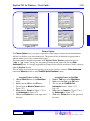
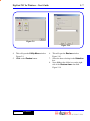
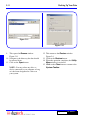
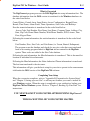
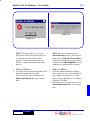
Figure K-3
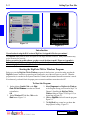
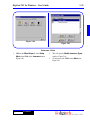
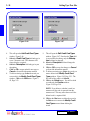
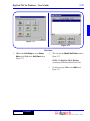
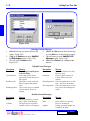
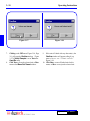
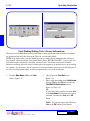
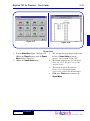
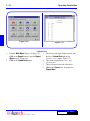
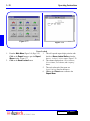
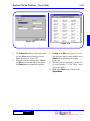
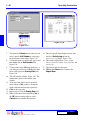
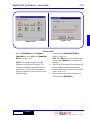
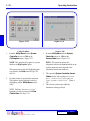
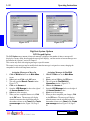
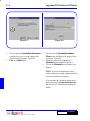
Figure K-2
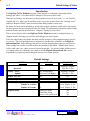
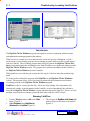
Introduction
By installing or using Software provided with this purchase, PURCHASER indicates acceptance of
the Conditional Software License Agreement included with the software. Under this License, the
Software may be supplied to PURCHASER with a temporary activation code. Once all purchase
terms have been complied with, including all payments as agreed, a Software Registration will be
issued with a permanent registration code. If this software has been provided with a temporary
activation code, use the following instructions:
Starting the Program for the First Time
1.
2.
3.
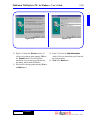
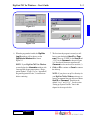
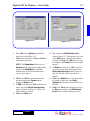
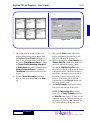
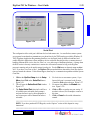
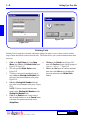
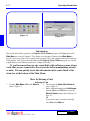
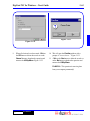
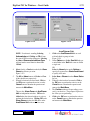
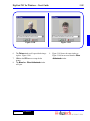
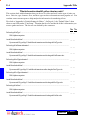
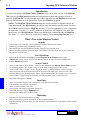
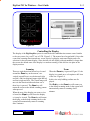
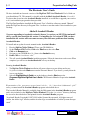
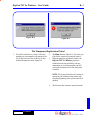
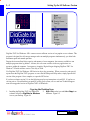
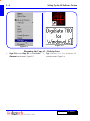
The first time you start the program, the
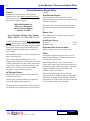
Information window will open with notification that you need to register your DigiGate700 for Windows software. Figure K-1.
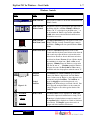
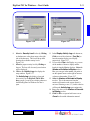
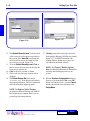
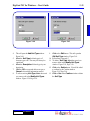
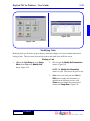
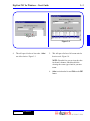
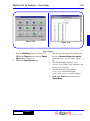
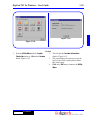
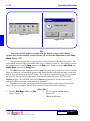
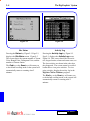
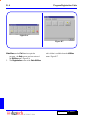
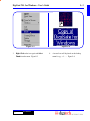
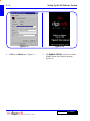
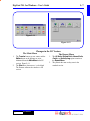
From the Main Menu, Figure 3-46, Page 3-24,
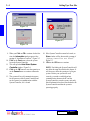
Click on the Utility button and Select the Data
Utilities tab.
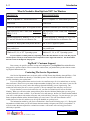
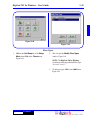
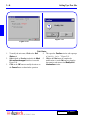
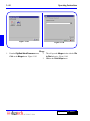
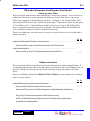
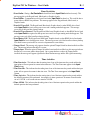
Click on the Registration button. Figure K-2.
4.
5.
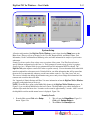
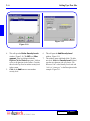
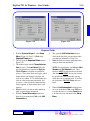
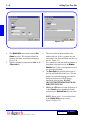
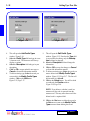
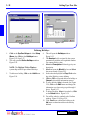
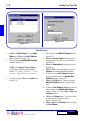
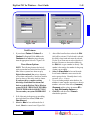
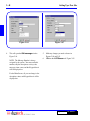
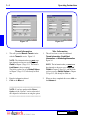
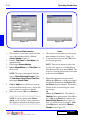
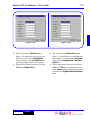
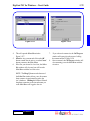
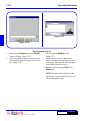
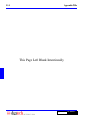
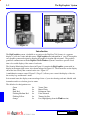
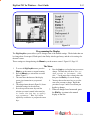
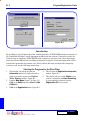
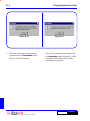
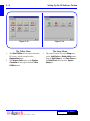
This will open the Registration Information
window. Figure K-3.
This window will give you the Status of your
software’s registration, the Days Remaining
on your temporary registration, and the
Registration ID for your system.
DigiGate-700™ for Windows®