1
Editing
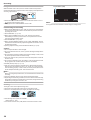
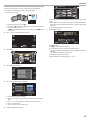
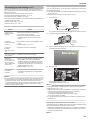
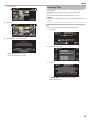
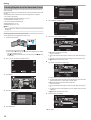
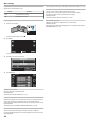
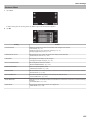
Uploading Videos to YouTube
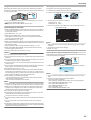
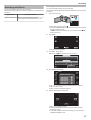
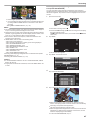
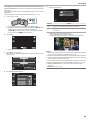
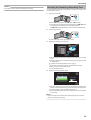
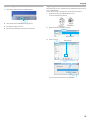
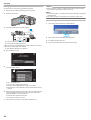
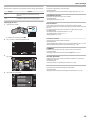
You can upload your videos to YouTube using the provided software Everio
MediaBrowser 4. Install the software on your PC and connect this unit to the
PC.
0 For details on how to use the software, refer to the help file.
“Installing the Provided Software (Built-in)” (A p. 77)
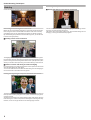
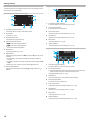
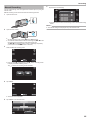
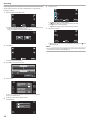
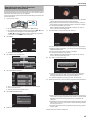
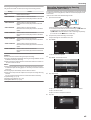
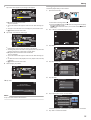
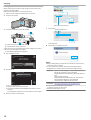
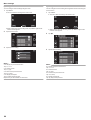
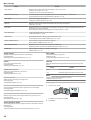
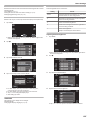
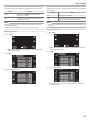
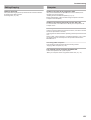
DO YOU WANT TO TRIM
THE VIDEO?
DO NOT TRIM
TRIM
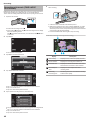
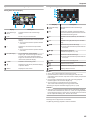
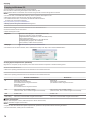
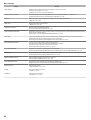
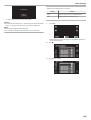
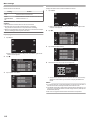
Trouble with Uploading Videos:
0
.
0
7
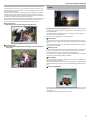
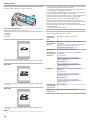
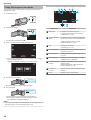
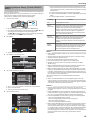
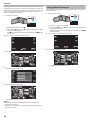
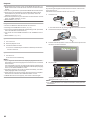
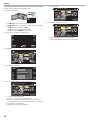
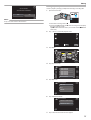
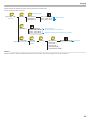
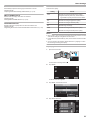
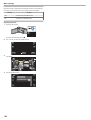
If the selected video is more than 15 minutes, trimming is necessary.
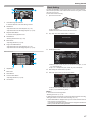
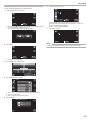
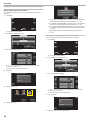
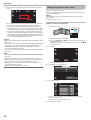
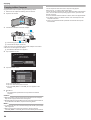
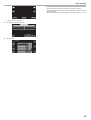
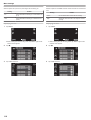
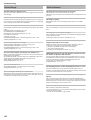
Tap e to pause playback at the desired start point, then tap “A”.
TRIMMING
0:01:23
0
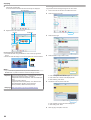
Check if you have created an account with YouTube. (You need a
YouTube account to upload files to YouTube.)
Refer to “Q&A”, “Latest Information”, “Download Information”, etc. in “Click
for Latest Product Info” in the help file of the provided software Everio
MediaBrowser 4.
0:12:34
STOP
.
8
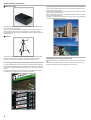
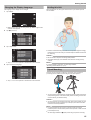
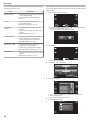
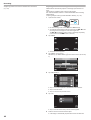
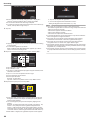
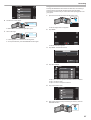
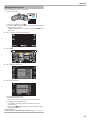
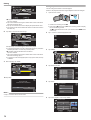
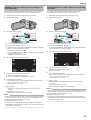
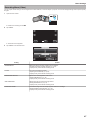
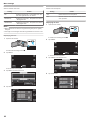
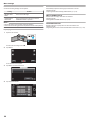
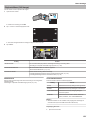
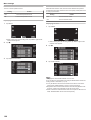
Tap e to pause playback at the desired end point, then tap “B”.
TRIMMING
0:01:23
0:12:34
A 0:00:23
STOP
.
0
0
9
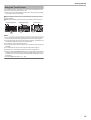
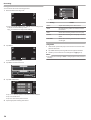
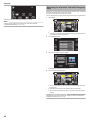
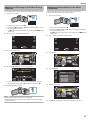
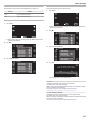
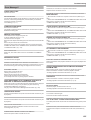
To reset the start or end point, tap “A” or “B” at the desired scene
(position).
When capturing videos for YouTube, the duration cannot be longer
than 15 minutes.
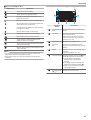
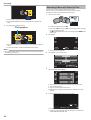
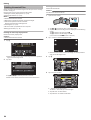
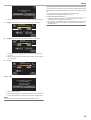
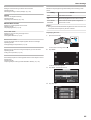
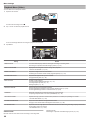
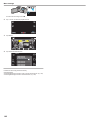
Tap “SET”.
TRIMMING
0:01:23
0:12:34
A 0:00:23
B 0:12:34
SET
STOP
.
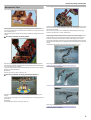
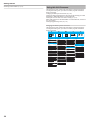
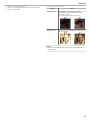
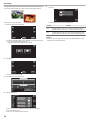
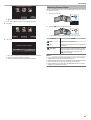
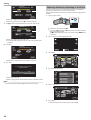
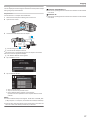
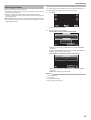
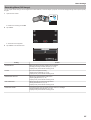
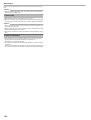
10 Tap “YES”.
DO YOU WANT TO CAPTURE
SELECTED RANGE?
(TO UPLOAD TO VIDEO
SHARING SITES)
YES
NO
.
0
0
0
After copying, tap “OK”.
When copying finishes, the copied file is added to the index screen.
To exit upload settings, tap “STOP” on the upload settings screen.
Memo :
0
The division point may deviate slightly from the selected scene.
69