1
Environment Summary
This deployment guide will walk you through step by step on how to install and
configure VMware products and Trend Micro Deep Security. At the end of this guide,
you will have a working environment running Deep Security Agentless Anti-Malware
protection.
On ESX 1, the vCenter server, Database Server and Deep Security Manager server
Virtual Machines can all be running on ESX 1 which will never be rebooted throughout
the entire setup process.
Note: VMware vCenter Server 4.1 can only be installed on a Windows 64 bit operating
system
The following VMware products must be installed and configured before we start Deep
Security Manager configuration: vCenter Server 4.1, ESX/ESXi 4.1 and vShield Manager
2.0.
Prepare 2 Virtual Machines for installing Deep Security Manager 7.5 Service Pack 2.
This is for a 2 node Deep Security Manager for load balancing and disaster recovery, for
testing purposes we can use only one Deep Security Manager server, simply skip the
installation steps when it comes to installing the 2nd Deep Security Manager.
Prepare 1 Virtual Machine for installing SQL 2008 Server to house the Deep Security
database.
On ESX 2, prepare Guest Virtual Machines and make sure to install VMware Endpont
Thin Agent individually on each machine.
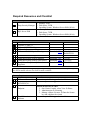
Here is a diagram of the machines running that will be running on each ESX Server. The
vCenter can be installed on a physical machine, but it can also be on a Virtual Machine.
Machines running on ESX Server 1 (This ESX must be running at all times throughout the setup process)
vCenter Server 4.1
Windows 2003
(64 bit)
vShield
Manager 2.0
Microsoft SQL
Server 2008
Deep Security
Manager 7.5
Windows 2008 (64 bit)
Machines running on ESX Server 2
Deep Security Virtual
Appliance 7.5
Guest VM - 1
Windows 2003
(32/64 bit)
Guest VM - 2
Windows 2008
(32/64 bit)