1
e
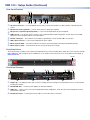
Status LEDs — five LEDs providing information about:
i
Overtemperature
a.
2
1
Network
Activity (2)
Network
Activity (1)
Drive
Activity
Power
The Overtemperature LED flashes yellow when a fan fails. It lights yellow solidly when the internal temperature is too high
(this may be caused by high ambient temperature or a fan that is obstructed).
b. Network 2 is not active, so this LED does not light.
c.
The Network Activity (1) LED flashes green when there is activity on Network 1.
d. The Drive Activity LED flashes yellow when the hard drive is in use.
e.
The Power LED lights green when the unit is receiving power.
f Reset button — is used to reboot the VNR 100.
g
Power button — used to apply or turn off the main power. When main power is turned off, standby power is actively
supplied to the recorder.
h
i
j
OS drive — houses the solid state operating system drive (removable).
Media drive — houses the media drive (removable).
Spare drive bays (2) — are not used. They must not have drives fitted.
ATTENTION:
• Do not remove the OS drive or media drive while the VNR 100 is powered on.
• For complete instructions about replacing the OS drive, see the VNR 100 O/S Drive Replacement Kit Installation
Guide at www.extron.com.
• For complete instructions about replacing the media drive, see the VNR 100 Media Drive Replacement Kit
Installation Guide at www.extron.com.
VNR 100 Power Up Procedure
NOTE: Before powering up the VNR 100, ensure all necessary devices are connected correctly and powered up.
Power up the VNR 100 by pressing the power button (see Front Panel Features figure, g). The VNR 100 boots up.
VNR 100 Power Down Procedure
Power down the VNR 100 by pressing and releasing the power button (see Front Panel Features figure, g). Ther recorder takes
approximately 20 - 30 seconds to power down.
VNR 100 Initial Configuration
Network Considerations
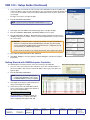
Before connecting the VNR 100 recorder to the network, you need to know the network settings of both the VNR 100 and the
VNM Enterprise Controller. The following are the default settings. Check with your network administrator to be sure they still apply
to your unit:
Network settings (ETH0)
Controller
Configuration
IP address
192.168.254.254
Subnet mask
255.255.255.0
Gateway address
192.168.254.253
Port
8080
IP address
192.168.254.254
Port
5432
User name
config
Password
config
3