1
This is the second page of the Setup Guide. Start on the opposite side first.
SR300
High Power Wireless-N Range Extender / Smart Repeater
How to Connect your Wireless Computer to the Range Extender
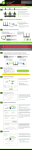
Windows 7 and Vista
A. Click on the Wireless icon to see available
wireless networks (For Vista, click Start >
Connect To). Select the "Amped_Wireless"
network and click Connect.
B. When prompted, enter the wireless
security key "wireless" and click OK.
Mac OS X
A. Click on the Wireless icon to see available
wireless networks. Select the "Amped_Wireless"
network and click Connect.
B. When prompted, enter the wireless
security key "wireless" and click OK.
Amped_Wireless
Amped_Wireless
Wi-Fi Protected Setup (One-Touch Setup or Push Button Configuration)
If your wireless adapter has WPS one-touch setup you can use it when connecting to the Range
Extender. Hold down the WPS button on the Range Extender (back panel) for 3 seconds. The WPS
LED will begin to blink. As it blinks, push the WPS button on your wireless adapter or enable WPS
with the provided software for your wireless adapter.
Using the Smart Features on your Range Extender
The Range Extender is equipped with many powerful security features which can be accessed
through the web menu under Smart Features on the left side of the web menu:
12:26
Wireless Access Scheduling
Control when your Wi-Fi is on/off
Menu Location: Smart Features > Access Schedule
User Access Control
Restrict network access to specific users
Menu Location: Smart Features > User Access
Wireless Coverage Control
Adjust the distance of your wireless network
Web Menu (Left Side)
Menu Location: Smart Features > Wireless Coverage
If you are unfamiliar or want more information on how to set up Smart Features, please refer
to the User’s Guide on the included CD.
Setting the Range Extender’s System Clock
In order for your Access Schedules and logs to perform using the correct time stamps and
schedules you will need to set your System Clock. To do so, go under Management and
access the System Clock tab to sync the System Clock with your computer’s time.
Tips: Trouble Accessing the Smart Setup Wizard
PROBLEM: The Setup Wizard does not appear when you enter the setup web address.
Enter the setup web address into your browser:
http://setup.ampedwireless.com
If the URL fails to open, then try: http://192.168.1.240
SOLUTION: Disconnect your computer from all Wi-Fi networks and try again.
Your computer should be connected to the Range Extender with the included Ethernet cable.
a
Disconnect your computer from
all wireless networks.
b
Enter http://setup.ampedwireless.com
into your web browser again.
NOTE: Your computer does not need Internet to access the Smart Setup Wizard.
Windows XP:
Windows 7:
Wireless Network
Wireless Network
Click the Wireless Signal icon from bottom right corner.
Select your network and click Disconnect.
Right click the Wireless Signal icon from bottom right corner.
Click View Available Wireless Networks, select your network and click Disconnect.
If you continue to have problems accessing the Smart Setup Wizard:
a Reboot the Range Extender, disconnect your computer from all wireless networks and try again with the Ethernet cable. If this fails, try...
b Disconnect the cable from your computer to the Range Extender. Connect via wireless adapter to the Range Extender's
wireless network: Amped_Wireless. When prompted, enter the security key: wireless. Once connected, open your web browser and try:
http://setup.ampedwireless.com. If this fails, please contact our support department for assistance.
Tips: Power Outages, Rebooting Routers and Channel Changes
Wireless routers operate on specific wireless channels to avoid interference with neighboring networks. Some
wireless routers are set to automatically scan for the best wireless channel. A power outage, or a simple reboot,
may cause your home wireless router to change its wireless channel and cause the Range Extender to disconnect
from your home network.
To fix this issue, simply log onto the Range Extender’s web menu by opening your web browser and accessing
http://setup.ampedwireless.com. If the page does not load, try resetting the Range Extender by holding down
the reset button on the back panel for five to ten seconds. After the Range Extender has rebooted, open your
web browser and try again.
When the Web Menu appears, run through the Smart Setup Wizard again to reconfigure the connection to your
Home Network.
To prevent the channel changing issue from occurring in the future, you may log onto your router’s web menu
and set the wireless channel from automatic to a static channel number. You will need to reconfigure the Range
Extender with the new channel. If you are not sure how to access your router’s setup menu, please contact the
router’s manufacturer for further support.
Tips: Autoloading Web Menu
When the Range Extender loses its connection with your Home Network, the Web Menu will automatically load on
your web browser. All web address entries will be redirected to the Smart Setup Wizard of the Range Extender. This
redirect feature is meant to notify and help you to easily re-configure your Range Extender in the event of a
disconnection. You may disable this feature through the web menu (left side): IP Settings > Auto-DNS.
Troubleshooting Tips
PROBLEM:
SOLUTIONS:
PROBLEM:
SOLUTIONS:
PROBLEM:
SOLUTIONS:
I cannot connect to my Home Network. I received an error when running the Smart Setup Wizard.
a. Your Home Network may be secured. Double check that you have the correct security key to connect to
the Home Network.
b. Try adjusting the channel number of your Home Network’s router to channel 5 thru 11. Then attempt the
Smart Setup Wizard again.
c. Reboot your Home Network router and try to connect again using the Smart Setup Wizard.
d. Check to see that your Home Network router’s DHCP server is enabled. The Range Extender needs to obtain
an IP from your Home Network router.
My Range Extender was working fine previously, but now I can no longer access the Internet through the Range Extender.
a. The connection to your Home Network may have been dropped or the router settings may have changed. Changes
to the router could be a result of several events, such as a power outage. When this occurs, connect to the Range
Extender and access the setup menu using the web address: http://setup.ampedwireless.com
Run the Smart Setup Wizard to reconnect the Range Extender to your network.
b. The Range Extender may be too far from your home router and not maintaining a signal strength of above 70%.
Check the signal strength between the router and the Range Extender through the web menu (left side):
More Settings > Management > Repeater Status. The Signal Strength readout will be under the Home Wireless
Network Settings section. This Signal Strength must be above 70%. If it is below, move the Range Extender closer
to your router, or reposition the Range Extender.
I cannot find my Home Network when scanning for wireless networks in the Smart Setup Wizard.
a. The Range Extender may be out of range. Move the Range Extender closer towards the wireless router and try
the Setup Wizard again from the web menu.
b. Make sure that your Home Network’s wireless SSID is broadcasting and not hidden. Hidden SSIDs will require
that you manually enter the SSID into the Wireless Settings > Home Network menu.
If you continue to have issues setting up the Range Extender, give us a call — we’re here to help: 888-573-8820
Visit our website for more support information and answers to frequently asked questions: www.ampedwireless.com/support
Amped Wireless
A Division of Newo Corporation
Copyright © 2011 Amped Wireless / Newo Corporation. All rights reserved.
Amped Wireless, Newo Corporation, the Amped Wireless logo are registered trademarks or trademarks of Newo Corporation.
v070312