1
McAfee ePO Advanced Suite Installer Product Guide
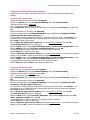
You might subsequently create a similar task for the Laptops group, but provide additional flexibility, such
as deferring scans while on battery power. One would typically establish separate schedules and
exclusion configurations for scheduled scans of your various servers based on services they support (e.g.,
Exchange, SharePoint, SQL, Domain Controller, DHCP, etc.).
Create client tasks
Creating an Update Task
While a pre-built Product Update task was provided, it is important to walk through the process once in
order to see the whole process.
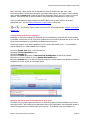
In this section, you will create a client task that updates the VirusScan DATs and the Host Intrusion
Prevention content. In a production deployment you may prefer separate schedules for groups
containing servers and workstations. The schedule below is only a sample. Feel free to set a different
schedule if desired.
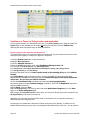
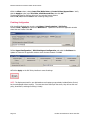
1 Click the System Tree button on the favorites bar.
2 Highlight the My Organization group.
Click the Assigned Client Tasks tab.
3 Click Actions, and then click New Client Task Assignment.
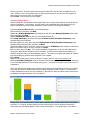
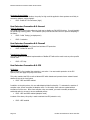
4 Under Product, select McAfee Agent. Under Task Type, select Product Update, and then click
Create New Task.
5 For Name, type AV & HIPS Daily Update.
6 Next to Package Types, make sure the following boxes are checked:
• Engine
• Buffer Overflow DAT for VirusScan
• Host Intrusion Prevention Content
• DAT
7 Click Save.
8 When returned to the Client Task Assignment Builder page, highlight AV & HIPS Daily Update on the
right under Task Name, and then click Next.
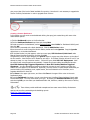
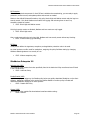
9 On the Schedule page, set the following options:
• Set Schedule Type to Daily
• Set Start Time to
• Set Start Time to 4:00 pm and any Repeat if desired.
• Select Run Missed Task with a 5 minute delay.
10 Click Next.
11 On the Summary page, click Save.
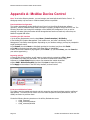
A Note Regarding Laptops
Laptops that temporarily disconnect from your network continue to run their assigned update tasks. By
default, laptops retrieve updates from the McAfee site while on the road with an available Internet
connection. If you have a large number of laptops that you’d like to have visibility of, and manage them
when they are on the road, whether a VPN is present or not, consider placing an ePolicy Orchestrator
“Agent Handler” in your DMZ. Additional information on Agent Handler is located in the ePolicy
Orchestrator product guide and in the ePolicy Orchestrator Agent Handler White Paper.
McAfee ePO Advanced Suite Installer
Page 21