1
Deleting Events
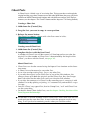
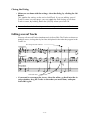
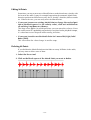
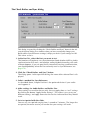
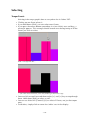
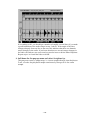
Audio Events are deleted just as Parts in the Arrange window or Events in a MIDI
Editor.
● Deleting an Event does not delete its Segment from the Audio Pool.
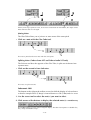
Using the Eraser to Delete Events
Clicking on an Event with the Eraser tool will delete it.
Using Keep to Delete Events
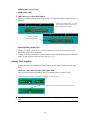
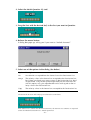
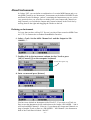
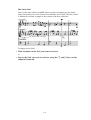
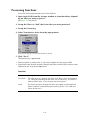
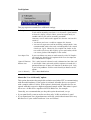
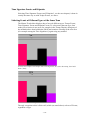
To delete all Events but the ones selected, proceed as follows:
1. Select the Events you want to keep.
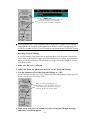
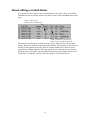
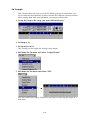
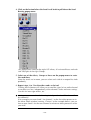
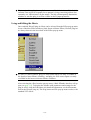
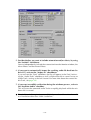
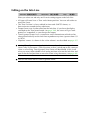
As in the MIDI editors, the To pop-up menu determines which Events will be
affected. If you want to be sure only those Events will be kept, that you have
selected, the To pop-up menu should show “All”.
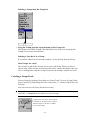
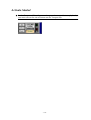
2. Select “Keep” from the pop-up Do menu.
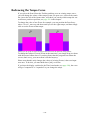
All Events are deleted, except those indicated by the To pop-up menu and
your selection.
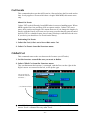
Using the Menu or Keyboard to Delete Events
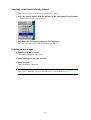
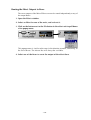
1. Select the Events.
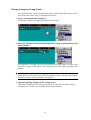
2. Press [Delete] or [Backspace] or select Delete Events on the Edit menu.
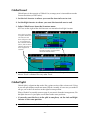
Permanently deleting an Audio File
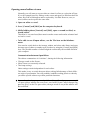
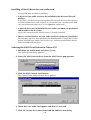
To delete an Event and its audio file from disk, hold down [Control] and press
[Backspace].
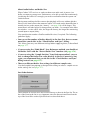
● This operation will permanently delete the referenced audio file from your
hard disk, and can not be undone.
- 261 -