1
Digital Rapids TouchStream
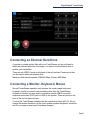
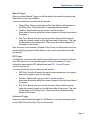
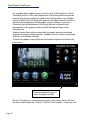
Projects have all
outputs enabled
by default.
Disable the ones
you do not plan
to use by
pressing the
check mark to
clear the box.
Archive File Output
You can use your TouchStream unit to create an archive file. You must connect
an external drive to your TouchStream unit if you plan to create archive files. You
cannot write archive files to the internal ―C‖ drive of the TouchStream unit. If you
do not plan to create an archive file, ensure that you disable the archive output or
your encode will not start.
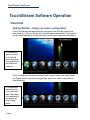
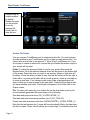
Folder: To select the drive and folder to use for your archive files press the
Browse button. All of the detected external drives will be shown in the bottom half
of the screen. Select the drive you want to use and any folders on that drive will
be shown. Press the folder you want to use. Use the two buttons at the far right, a
folder with a + symbol and a folder with a curved up arrow, to add a new folder or
to move up one level. If you choose to add a new folder a keyboard panel will
open to allow you to type a name for the new folder. Press the Done button after
you have selected your folder. The full path will appear in the Folder field on the
Output screen.
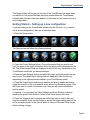
File: To select a file name for your archive file use the drop down arrow to pick
an automatically generated file name based on the following:
Start date and project start time (%D_%%PROJ.STIME_%)
Start date and auto incrementing number from 0 (%D_%%N.0%)
Project start date and project start time (%PROJ.SDATE%_%PROJ.STIME_%)
Note that the text between the % signs will be automatically filled in by data when
the file is created. These %text% strings are ―system tags‖ or wildcard values that
Page 14