1
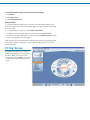
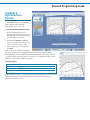
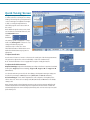
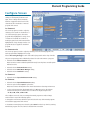
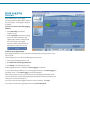
When you are ready to program Element™, certain sections on the
screen will remain constant during the fitting process. A brief
description of these sections is found below.
Toolbar
The toolbar is available at the top of each screen, just below the
main menu.
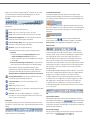
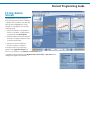
The toolbar contains the following icons:
Undo: removes your last action up to 15 steps.
Communication Status
On the left and right side of the bar, the current status of the
selected hearing instrument is indicated. The “X” through the ear
icon indicates that the hearing aid is not communicating with U:fit,
as seen below:
To re-establish communication with the hearing instrument, click
the “X” through the ear icon. U:fit will search for connected hearing
instruments. If successful, the following icon and message will be
displayed:
Redo: performs the last removed action up to 15 steps.
Read from Hearing Aid(s): reads the fitting information
currently saved in the hearing instrument.
Save to Hearing Aid(s): saves/programs the current fitting
information into the hearing instrument.
Mute
The mute buttons
on the status bar indicate the
current state of the hearing instrument: muted or unmuted.
Mute/unmute can be selected individually for each ear.
Reserve Gain
Quick Fit: opens the re-calculate menu.
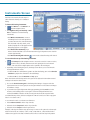
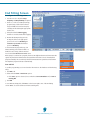
The recalculate menu gives you the following options:
• Quick Fit:
1. Check/Uncheck the Frequency Response and/or
Inputs and Adaptive Features checkboxes.
2. Select a program option from the For: drop-down list.
3. Press OK.
• Discard Current Fitting and Start Over: If selected, this
option will reset the hearing aid to its default settings.
Note: For Moxi™ fittings, if no feedback test has been
performed, the Quick Fit is limited to a stable condition. To
remove the gain limits for the Quick Fit, uncheck the box
Limit gain when no feedback threshold has been measured.
Hearing Aid Information: provides specification sheets,
tutorials and programming information.
Save to Database: saves the current fitting to the
database.
Print: prints a client report.
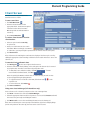
In the above illustration, the reserve gain for the right device is
5 dB (on average) and 10 dB for the left device. The reserve gain
indication turns orange once the current fitting no longer provides
the requested amount of reserve gain. It will stay orange as a
reminder that the reserve gain has been changed. If the reserve
gain is locked, and gain is increased until the limit has been
reached, the lock symbol flashes. The reserve gain will then remain
at the requested value. You can click on the reserve gain display in
the status bar to access the volume control set up at any time
during the fitting.
For Element Moxi: All Moxi hearing aids have onBoard™ control. This
allows you to configure the push button either as a toggle between
programs or as a volume control (for more details on how to
configure onBoard control, see the Instruments Screen section).
If onBoard control is configured as a program toggle, the toolbar
will display OFF, to show that the volume control is turned off.
If onBoard control is configured as a volume control (VC), the
toolbar will display ON, to show that the volume control is turned
on, as seen below:
Contact Us: brings you to the Unitron Hearing website with
contact information.
Exit U:fit: exits the software application. You will be
prompted to save your fitting information if you have not
done so before closing U:fit™.
Status Bar
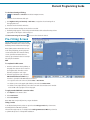
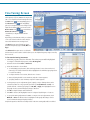
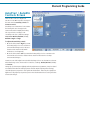
The status bar at the bottom of the U:fit window provides useful
information on the current status of the hearing instruments in the
fitting.
You will also have access to the push button VC setting by clicking
ON.
Current Environment
The current active environment in the instrument is shown in
the middle of the status bar.
This shows which
environment is currently being adjusted. The client is listening
to this environment if communication to the devices is active as
indicated in the status bar.
Processing Strategy
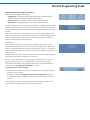
The status bar is clearly divided into a left and right side indicated
by blue and red icons, respectively.
The processing strategy is shown in the box next to the listening
environment.