1
General control
■
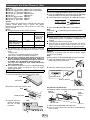
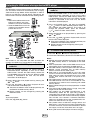
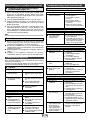
AirPlay auto switch
During other function (CD, TUNER, USB, iPod, Audio In), when you select DKKP95P speaker through AirPlay icon on your AirPlay device, the unit will
automatically switch to Network function and stream the music from your AirPlay
device.
This condition applies when:
The AirPlay network has previously been set up between the unit and your
AirPlay device.
■
X-Bass control
When the power is first turned on, the unit will enter the extra
bass mode which emphasises the bass frequencies, and
“X-BASS” indicator will appear. To cancel the extra bass mode,
press the X-BASS button on the remote control.
■
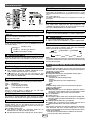
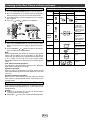
■ Bass control
1 Press the BASS/TREBLE button to select “Bass”.
2 Within 5 seconds, press the VOLUME (+ or –) button to adjust the bass.
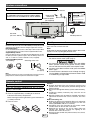
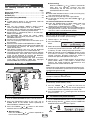
To turn the power on
Press the POWER ON/STAND-BY button to turn the power on.
After use:
Press the POWER ON/STAND-BY button to enter the
power stand-by mode.
■
■ Treble control
1 Press the BASS/TREBLE button to select “Treble”.
2 Within 5 seconds, press the VOLUME (+ or –) button to adjust the treble.
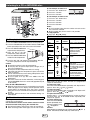
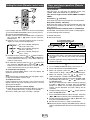
Display brightness control
To dim the display brightness, press the DIMMER button on
the remote control.
Dimmer 1 (Display is dim).
Dimmer 2 (Display gets dimmer).
■
Dimmer off (Display is bright).
■
NETWORK
Volume auto fade-in
Audio In
If you turn off and on the main unit with the volume set to 27 or
higher, the volume starts at 16 and fades in to the last set level.
■
Volume control
Auto power off function
The main unit will enter the stand-by mode (when iPad, iPod or
iPhone is not connected) after 15 minutes of inactivity during:
iPod :
Not docked.
Audio In : No detection of input signal.
CD :
In the stop mode or no disc.
USB :
In the stop mode or no media.
Note:
However, if iPod or iPhone is docked, the unit will begin
charging. “Charge Mode” will be displayed.
■
Muting
The volume is muted temporarily when pressing the MUTE
button on the remote control. Press again to restore the volume.
■
USB
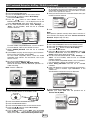
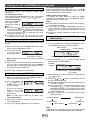
Wi-Fi network Setup for AirPlay / DLNA
Direct key power on function
When you press any of the following buttons, the unit turns on.
● iPod, CD/USB, AUDIO IN, TUNER, NETWORK on the
remote control: Selected function is activated.
●
/ button on the main unit: The unit turns on and
playback of the last function will start (CD, TUNER, USB,
iPod, AUDIO IN, NETWORK)
■
AM
iPod
Note:
The backup function will protect the memorized function mode for
a few hours should there be a power failure or the AC power cord
becomes disconnected.
Press VOL +/- to increase or decrease the volume.
■
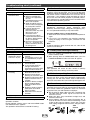
Function
When the FUNCTION button on main unit is pressed, the current
function will change to different mode. Press the FUNCTION
button repeatedly to select desired function.
FM MONO
CD
FM STEREO
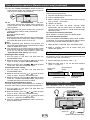
Auto power on
During stand-by mode, when you select DK-KP95P speaker
through AirPlay icon on your AirPlay device, the unit will
automatically power on to Network function and stream the
music from your AirPlay device.
This condition applies when:
● The AirPlay network has previously been set up
between the unit and your AirPlay device.
● Set the Network Stand-by mode to ON. (refer page 4)
(AirPlay)
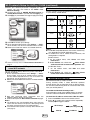
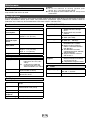
With Apple AirPlay technology, you can stream your music from your
iTunes on a Mac, PC, iPhone, iPod touch, or iPad to external speakers
(DK-KP95P) via a Wi-Fi network.
AirPlay usage requires:
● MacBook or MacBook Pro running MacOS 10.6.6 or greater.
● iTunes 10.2 or greater (Mac/PC).
● iOS 4.3 or later
- iPod touch (4th, 3rd and 2nd generation)
- iPhone 4
- iPhone 3GS (iPhone 3G cannot support AirPlay)
- iPad 2
- iPad
(DLNA)
DLNA technology enables you to share media from one device to
another via a Wi-Fi network.
DLNA usage requires:
● DLNA compatible devices with appropriate application. (Refer to
your devices’ manual) Support status varies depending on model
and software features such as client and server functions.
● PC with Windows 7.
● DLNA version 1.5
● This product supports audio source with playback capability only.
Streaming (audio and video) from DLNA devices is not supported
by this product.
● DRM file playback (DTCP-IP) is not supported.
● SHARP does not guarantee that this product will work with all
DLNA compatible devices and wireless LAN routers.
Note:
When this unit is placed too near a Wireless LAN device or microwave,
noise interference may occur, causing crackling sound. It may also
reduce the communication speed and cause invalid connection. If these
happen, do the following:
- Place the unit away from the Wireless LAN device or microwave.
- Place the unit closer to the source device.
E-2