1
eCopy ShareScan® Installation and Setup Guide | 307
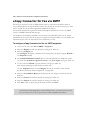
eCopy Connector for Captaris™ RightFax™
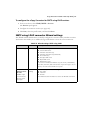
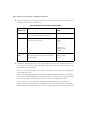
Before using a connector, review the quick reference section (see page 283). That section includes
information about performing functions that are common to many connectors, such as specifying
scanner and document settings.
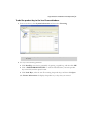
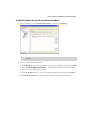
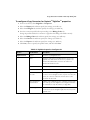
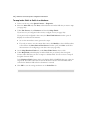
To use eCopy Connector for Captaris™ RightFax™:
1
2
3
4
5
6
7
8
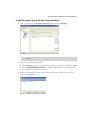
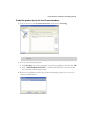
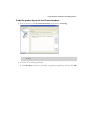
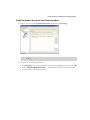
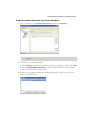
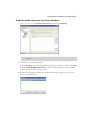
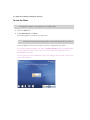
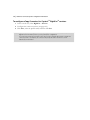
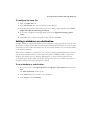
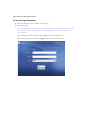
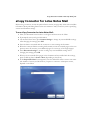
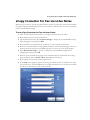
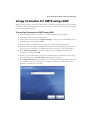
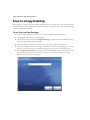
Place your document in the feeder or on the glass and then access the Client.
If prompted, enter your logon information.
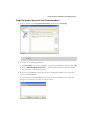
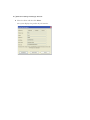
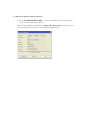
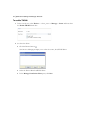
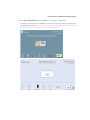
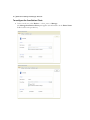
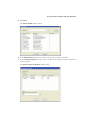
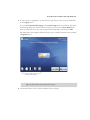
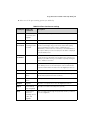
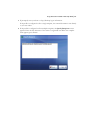
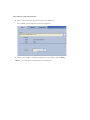
On the main Client screen, press Scanner Settings to change any user-modifiable settings.
After changing the settings, press OK.
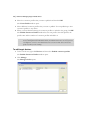
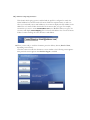
Press the button associated with the connector to start scanning the document.
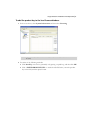
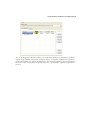
When the connector finishes scanning the document, review the scanned pages on the scan
preview screen. If necessary, scan additional pages or re-scan any of the original pages.
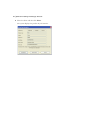
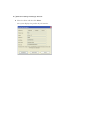
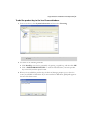
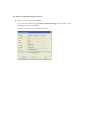
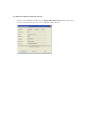
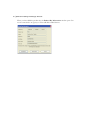
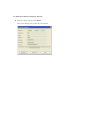
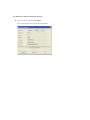
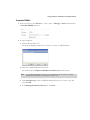
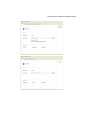
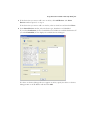
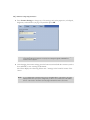
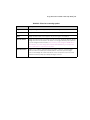
Press Document Settings to review or change any user-modifiable settings. After
changing the settings, press OK.
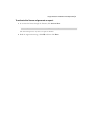
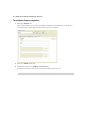
When you have scanned all the pages in the document and are satisfied with the settings,
press the delivery button (Send or Next, depending on the Client).
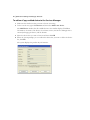
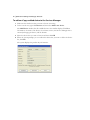
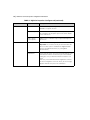
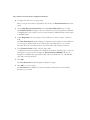
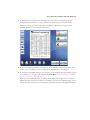
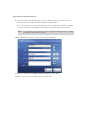
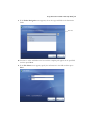
If prompted, enter your user name and password.
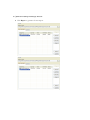
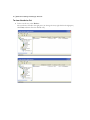
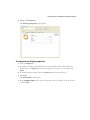
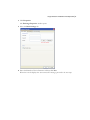
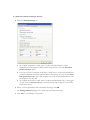
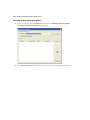
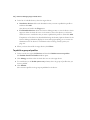
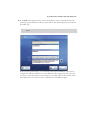
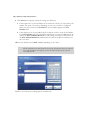
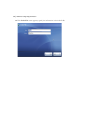
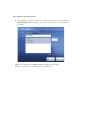
If you configured RightFax to capture billing information, the Billing Codes screen
appears.