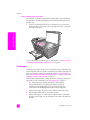
1
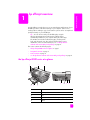
hp officejet overview
purpose
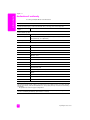
4
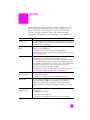
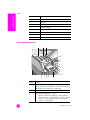
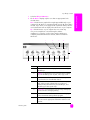
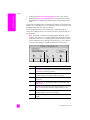
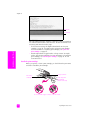
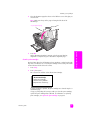
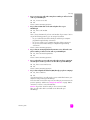
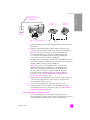
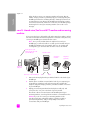
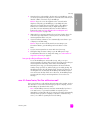
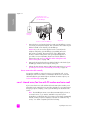
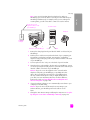
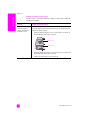
Setup: access the menu system for reports, speed dial setup,
fax settings, tools, and preferences.
5
Redial/Pause: redial the most recently dialed fax number.
Also, use to insert a pause while entering a telephone
number.
6
Speed Dial: select a number from programmed speed dial
entries. Use the arrows or the keypad numbers on the front
panel to navigate to a speed dial fax number.
7
OK: select the current menu setting on the front panel display.
Also, use to respond to prompts on the front panel display.
8
Right Arrow: increase values, or go forward when viewing
settings on the front panel display.
9
Cancel: stop a job, exit a menu, exit settings, or exit the speed
dial menu.
10
Left Arrow: decrease values, or go back when viewing
settings on the front panel display.
11
Start Black, Start Color: start a black or color copy, scan, or
fax job.
12
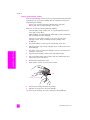
Automatic Document Feeder Release Button: press to release
the front panel to clear a paper jam from the automatic
document feeder. The front panel only opens part way. Do
not force it!
13
Scan: select the scan function. Press the Scan button
repeatedly to scroll through the Scan menu settings.
14
Fax: select the fax function. Press the Fax button repeatedly
to scroll through the Fax menu settings.
15
Copy: select the copy function. Press the Copy button
repeatedly to scroll through the Copy menu settings.
16
Front panel Display: view menus, prompts, status messages,
and error messages.
3
hp officejet overview
reference guide
feature