1
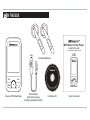
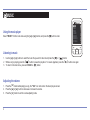
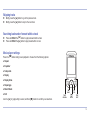
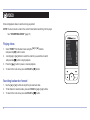
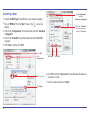
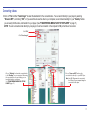
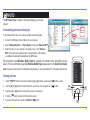
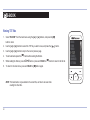
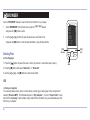
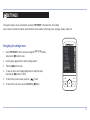
BROWSER . to view all the files or folders list on your player. Use the “BROWSER” feature 1. Select “BROWSER” from the main menu using the [] or [] buttons, and press the [M] button to enter. 2. Use the [] or [] buttons to select the previous or next folder or file, and press the [M] button to enter the selected folder, or play the selected file. Deleting Files MUSIC VIDEO PHOTO E-BOOK RECORD BROWSER SETTINGS [] [] NEXT PREVIOUS ● From the player 1. Press the [ ] button to pause the music or video (for pictures or e-book files skip to step 2). 2. Press the [M] button and select “Delete file”, or “Delete All”. 3. Use the [] or [] , and [M] buttons to select and confirm. OR ● From your computer You can easily delete music, picture or video files by connecting your video player to the computer and selecting “Emerson MP3” from Windows Explorer or “My Computer”, or click on “Open Folder” to view files from the “Auto play” option window, simply select the file and delete it as you would delete any other file from your computer. 22 [M] MENU