1
Connect the IR Ports/Serial Ports
(Optional)
IR Blaster
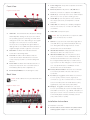
The HC-250 provides four (4) IR ports; Ports 1 and
learning codes, which is located just left of the front
2 can be reconfigured independently for serial
communication. If not used for serial, they can be
The HC-250 is also equipped with an IR blaster, for
LEDs. To use the blaster rather than an IR emitter:
1
Controller to the IR In for the device you want to
used for IR. Connect a device to the HC-250, for
example, a receiver or disc changer, using the special
serial cable (optional, C4-CBL3.5-DB9B). Serial ports
control.
2
Test and verify that the HC-250 is positioned in
such a way that the blaster can reach the device
support many different baud rates (acceptable range:
you want to control.
1200 to 115200 baud for odd and even parity).
The following table shows the serial communication
In Composer, connect the IR Blaster of the
Setting Up External Storage Devices
values. Also see Knowledgebase article #268 for
You can store and access media from an external
pinouts.
storage device, for example, a network hard drive
Hardware
Flow
Control
Odd
Parity
Even
Parity
No
Parity
Serial Port 1
X
X
X
Serial Port 2
X
X
X
Other
or USB memory device, by plugging the USB drive
into the USB port and configure or scan the media in
Composer Pro.
NOTES:
(1) We support only USB drives that are
To configure a port for serial or IR, make the appro-
externally powered or USB sticks (solid state).
priate connections in your project using Composer
Self-powered USB drives are not supported.
Pro. See the Composer Pro User Guide for details.
(2) When using USB storage devices on an
HC-250, you can only use one (1) partition with
Set Up IR Emitters or IR Blaster
a 2TB maximum size. This limitation applies to
the USB storage on all other Controllers also.
Your system may contain third-party products that
are controlled through IR commands. To provide
a way for the Controller to control a device that
only recognizes IR commands, complete one of the
following setups:
• IR Emitters
• IR Blaster
IR Emitters
1
Composer Pro Driver Information
Select the Home Controller HC250 driver in
Composer Pro and add it to your Composer project.
See the Composer Pro User Guide for details.
Troubleshooting
Factory Restore Button
Plug the 3.5 mm connector end of one of the four
CAUTION! The Factory Restore process will
(4) IR stick-on emitters provided into an IR Out
remove the Composer project.
port on the HC-250.
2
Place the stick-on emitter end over the IR
receiver on the Blu-ray player, TV, or other target
device to drive IR signals from the HC-250 to the
target.
To restore the HC-250 for system recovery to the
factory default image, perform the following steps:
1
Disconnect power to the HC-250.
2
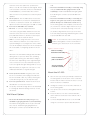
Insert one (1) end of a paper clip into the small
hole on the back of the HC-250 that is labeled
‘Factory Restore.’
5