1
Passport™ Programming Guide
FastTrack™ by U:fit
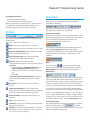
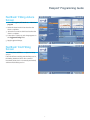
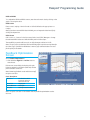
Select fastTrack from the toolbar.
The
may be used to turn fastTrack ON/OFF at any
time during the fitting.
Use the
and
buttons or the left
navigation menu to move from one screen to another.
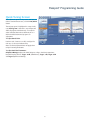
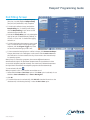
FastTrack™ Client Screen
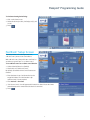
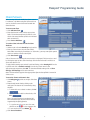
To enter a new client:
1. Click Add New Client
.
2. Enter the client information in the appropriate
fields. The minimum required information is the
client’s last name. Mandatory fields are indicated
with an asterisk (*).
3. Press Save to Database
.
To continue to the next screen press next or use the
left navigation. Either method may be used
throughout the fastTrack fitting session.
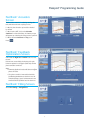
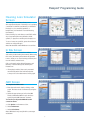
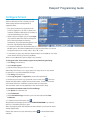
To enter the client’s audiometric data:
1. Enter the audiometric data by clicking on the
audiogram
. The data can also be entered by
using the table.
a. To enter the bone conduction values, click
BC
.
b. To enter uncomfortable loudness levels, click
UCL
.
c. To copy the curve from one ear to the next,
click the arrows
for the respective ear.
d. To remove the curve, click Delete
.
Press
to continue to the next screen or
to go back.
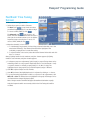
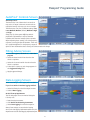
FastTrack™ Instruments
Screen
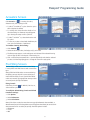
Select Detect All to connect to instruments (to
simulate a fitting see below).
Once the instruments have been successfully
detected, fastTrack will automatically continue to the
next screen in the navigation.
3