1
AXIS Camera Station
Troubleshooting
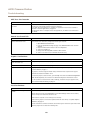
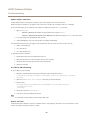
Playback Problems
Problem
Solution
Not enough disk space to buffer
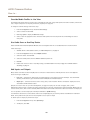
Increase the buffer size:
1. From the Options menu, open Customize and select the Recordings tab
2. Under Playback buffering select Use at most and use the slider to increase the
buffer size
How do I play exported
recordings?
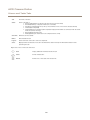
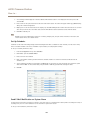
Exported recordings can be played using:
• Windows Media Player
• AXIS File Player
AXIS File Player is free software for video and audio playback, and is automatically included
with the exported recordings. No installation is required. To play recordings, open AXIS
File Player and select the recordings to play.
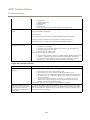
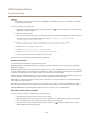
PTZ Problems
Problem
Solution
Mechanical PTZ and presets are
not available
Mechanical PTZ and PTZ presets are available for PTZ cameras and for cameras where digital
PTZ has been enabled in the camera's web pages. For information about how to enable
digital PTZ, see the camera's User Manual.
Mechanical PTZ and PTZ presets are not available if the camera's control queue is enabled.
The control queue can be disabled from the camera's web pages. For more information about
the control queue, see the camera's User Manual.
Area zoom does not work
Area zoom is not supported by AXIS 209MFD and AXIS 212 PTZ.
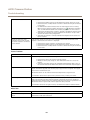
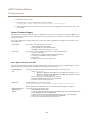
Recording Storage Problems
Problem
Solution
Network share is not accessible
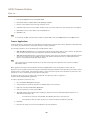
To use network shares on other computers, the Local System account cannot be used to log on
to AXIS Camera Station Service. To change the service login account, follow these instructions:
1. Open Windows Control Panel.
2. From the System & Security category, select Administrative Tools and then
Services.
3. Right-click AXIS Camera Station and select Properties.
4. Select the Log On tab.
5. Change from Local System account to This account.
6. Select a user with access to Windows Active Directory.
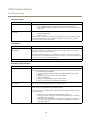
Network share is listed as
"Unavailable"
The computer that AXIS Camera Station Server is installed on should be part of the same
domain as the shared folder that is entered as a network share.
Recordings are deleted
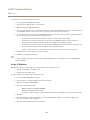
Recordings will be deleted after the number of days set as "days to keep". To change the
number of days, go to Configuration > Recording Storage.
If the disk becomes full, recordings will be deleted before designated the number of days. If
so, try the following:
• Add more disks. See Configure Recording Storage, on page 34.
• Change the amount of disk space reserved for AXIS Camera Station. Configure
Recording Storage, on page 34.
• Reduce the size of recorded files by modifying for example resolution or frame
rate. Video format H.264 results in smaller files than MJPEG. See Configure
Recording, on page 30.
71