1
2120ig_master.fm Page 1 Monday, July 3, 2000 4:33 PM
AXIS 2120 Installation Guide - English
Page 1 of 5
Installing Your Camera to a Network
Follow the guide below to quickly install your AXIS 2120 to an Ethernet network:
Important!
•
•
For details on how to install the AXIS 2120 to a modem, see section Installing Your Camera to a Modem.
If you are using your AXIS 2120 in an outdoor application, the unit must be housed in outdoor enclosure.
Please refer to Axis’ Website at: http://www.axis.com for suppliers details.
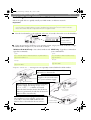
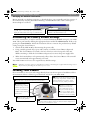
Note the Serial number on the underside of the unit. You need to know this to set the IP address:
Serial number same as
Ethernet number; e.g.
00408c100086 =
00-40-8c-10-00-86
Using an appropriate method for your operating system, assign your AXIS 2120 with a unique
IP Address from a computer on your network, as follows:
Windows 95/98 & NT only - Start a DOS window and UNIX only - Type these commands in
your command line:
type these commands:
Syntax:
Syntax:
arp -s <Server IP address> <Ethernet address> <my PC IP address>
arp -s <IP address> <Ethernet address> temp
ping <IP address>
ping <Server IP address> -t
Example:
Example:
arp -s 172.21.1.200 00-40-8c-10-00-86 172.21.1.193
arp -s 172.21.1.200 00:40:8c:10:00:86 temp
ping 172.21.1.200
ping 172.21.1.200 -t
‘Request timed out...’ messages are now repeatedly returned within the DOS window.
Connect an Ethernet cable to your AXIS 2120
and attach it to the network.
Attach the external Power
Network Connector
Supply to the unit and connect
it to your local mains supply.
RJ-45 Connector
Approximately 10-15 seconds after connecting
the power supply, the message ‘Reply from
or similar, is returned
within the DOS window. Ensure that the Power
Indicator is permanently lit and that the Network
Indicator flashes intermittently.
172.21.1.200...’ -
Power Supply
Connector
Press Control-C to exit ping.
The installation is now complete, and you are
now ready to access the AXIS 2120 from your
Web browser, as described in the next section...
Power Indicator
Network Indicator