1
Ensemble – User’s Guide
APOGEE ELECTRONICS
General Operation
Setting Sample Rate
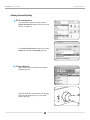
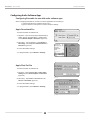
To set Ensemble’s sample rate, choose the desired rate in your Core Audio compatible software
application; Ensemble will set itself to this rate. If the application has no sample rate setting, open the
OSX utility Audio Midi Setup, select Ensemble in the Properties For field and select the desired rate in
the Format field.
Using 176.4–192 kHz Sampling Rates
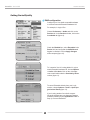
To operate Ensemble at a sample rate of 176.4-192k, it’s necessary to set I/O Allocation (found in Maestro under Tools>Settings>Settings tab) to either 10x10 or 8x8. As Optical I/O is not supported at these
sample rates, their associated Firewire paths are disabled to conserve CPU bandwidth.
After changing I/O Allocation, it’s strongly suggested to re-boot the computer and power the Ensemble
off and then on.
Setting Clock Source
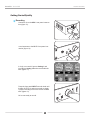
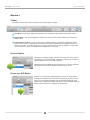
Ensemble’s clock source may be set from Maestro, Logic Pro’s Apogee Control Panel, or from OSX’s
Audio Midi Setup utility.
When Ensemble is locked to an external source, Ensemble’s sample rate is still determined by the
selection in software. Thus, the sample rate of the external source must be manually set to match the
software sample rate. For example, if you want to open a session at 88.2 kHz but lock Ensemble to word
clock from an Apogee Big Ben, you must manually set the Big Ben to 88.2 kHz.
Digital I/O
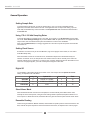
The availability of Ensemble’s digital I/O is based on the unit’s sample rate and Optical I/O Format
setting, as depicted in the chart below.
Analog I/O
Optical I/O
Coaxial I/O
Total
44k1/48k
8
8 ADAT or 2 S/PDIF
2
18
88k2/96k
8
4 SMUX or 2 S/PDIF
2
14
176k4/192k
8
none
2
10
Stand-Alone Mode
When Ensemble’s firewire connection is interrupted, the unit automatically enters Stand-Alone mode,
whereby all current control panel, routing and mixer settings remain operational, despite the absence of a
host computer. In Stand-Alone mode, the Status LED turns green and all front panel controls remain active.
Ensemble Routing
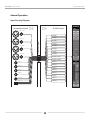
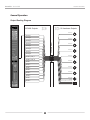
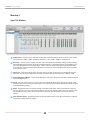
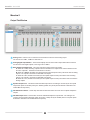
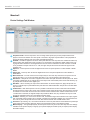
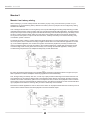
Unless routing is modified in Maestro software, all Ensemble rear panel inputs are routed via Firewire to the
Mac, while all rear panel outputs are routed via Firewire from the Mac, as depicted on the next two pages.
9