1
Routing
You can set your Unimessage Pro to organise faxes,
emails and scans you receive in the way you want.
S t and alone PC and i n di vi d ual u se r
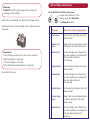
P lease note
Optical Character Recognition (OCR) functions are
included in your copy of Unimessage Pro you can
therefore define a User Routing Rule to
automatically convert received fax messages into
text ready for editing.
Ro ut ing Rules
Standard setting
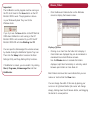
Received messages are stored in the Re c e i ve d
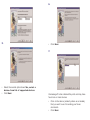
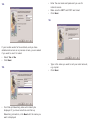
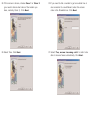
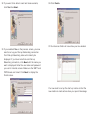
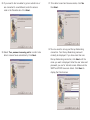
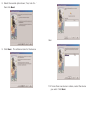
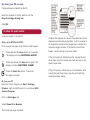
You can also define an OCR auto-detection scheme
by opening the S etup me n u and clicking O C R ,
that you can apply as part of the User Routing Rule.
i tems fo l d e r
Sent messages are stored in the Sent it ems folder.
Optional settings
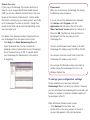
You can create, modify, remove, activate or deactivate
Routing Rules settings.
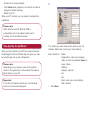
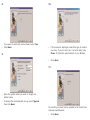
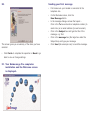
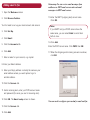
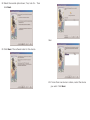
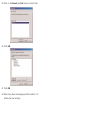
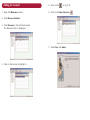
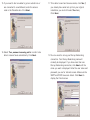
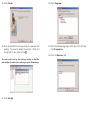
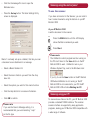
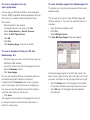
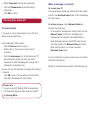
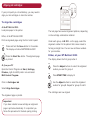
• Open the Browse Folders screen.
• Click S e t u p
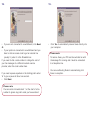
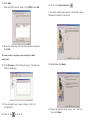
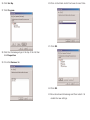
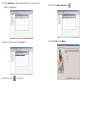
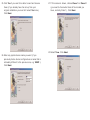
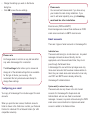
• Click Ro u t i n g Ru l e s . Use the dialog box to set or
change the way Unimessage Pro handles faxes,
emails and scans. For more information, click the on
screen Help button.
• Click O K to confirm.
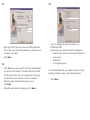
This will detect information from the received OCR
data derived from the fax image - for example the
subject of the fax message.
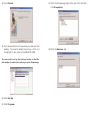
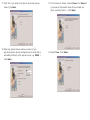
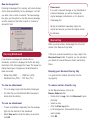
Because the Routing Rules take place in sequence,
if you then select other routing rules b e l ow the
OCR and auto-detection these subsequent rules can
act on the detected information.
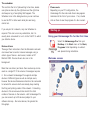
Ne t wo r k S y s t e m Ro u ti ng Rul es
Standard setting
Received faxes with sub-addresses and emails to a user
specific email account are delivered directly to the user.
Otherwise, incoming faxes and emails are added to the
Network Inbox folder and all available Unimessage Pro
Supervisors and Administrators are notified that the
message has arrived and requires attention.
Optional settings
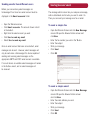
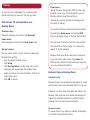
To change how a fax or email is received, Unimessage
Pro provides System Routing Rules.