1
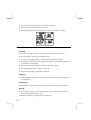
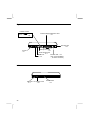
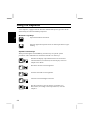
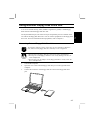
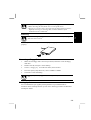
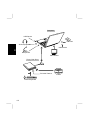
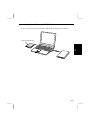
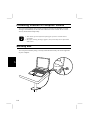
During infrared communication:
• Do not move the computer and the other IR device.
• Do not enter System standby.
• Do not use a cellular phone or another IR device near the computer.
• Avoid strong light such as sunlight or fluorescent light.
• Disable the screen saver.
IR Mode
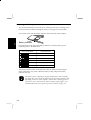
Your computer supports two available IR modes: IrDA (Infrared Data Association)
and ASK (Amplitude Shift Keying). Each application automatically selects the
appropriate IR mode.
Logical Port
5
For some software, you may have to change the assignment of the logical port:
1. In the SHARP IR dialog box, select Ports.
2. Change the settings, and click OK.
3. When the message You have changed the infrared communication port
appears, click OK.
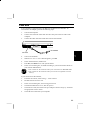
Turning off the IR communication
For IrDA communication, your computer is continuously emitting infrared rays to
search for other IR devices. If necessary, you can temporally disable this emission.
1. From the Start menu, select Settings - Control Panel.
2. Double-click the SHARP IR icon.
3. Turn off the infrared communication, and click OK.
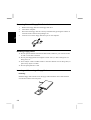
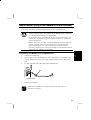
Communicating with Windows 98 Personal Computer
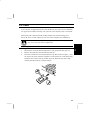
To communicate with a personal computer installed with Windows 98:
1.
Right-click the file you want to send.
2.
Select Send To - Infrared Recipient.
The file you send will be saved in My Received Files in C: drive of the target
personal computer.
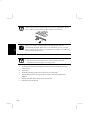
If you cannot send the file, confirm your computer and the target computer are
located correctly. Double-click My computer - Infrared Recipient, and check
whether the name of the target computer appears in Available infrared devices within
range. If not, relocate your computer and the target computer.
5-2