1
3.
Use the left / right key to move back or forward to an image or video clip.
4.
To play back a video, press the Down key in full screen mode to play the video file
5.
In full screen view, press the Up key to turn ON / OFF the on screen display information
(date, time, capture number, etc). For video files ensure you select this before playing
back the file.
6.
Press DISP to view any folders and Up / Down keys to scroll to a folder and press enter
to select.
6.8 Memory Overwrite Indication:
When the memory has reached its maximum storage capacity, any further files captured
will overwrite the earliest file stored. When the system is overwriting the earliest file, this
is indicated by the colour of the photo camera or video camera sign on the top left corner
of the TV / monitor. It will turn red when overwriting.
6.9 Deleting Recorded Files:
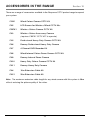
Delete Menu
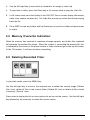
In play back mode, press the MENU key.
Use the left / right key to move to the required icon to delete the current image (‘Delete
One’ icon), delete all files in the current folder (‘Delete All’ icon) or delete all files stored
in memory (‘Format’ icon).
Press enter to display the tick or cross options for an icon on the screen. Use the left / right
key followed by the enter key to select the chosen option.
18