1
Using the Online Manager
Customizing the Confirmation Options
Customizing the Confirmation Options
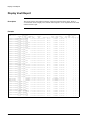
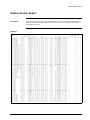
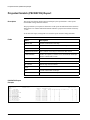
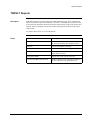
Description
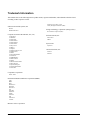
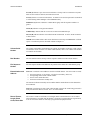
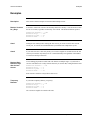
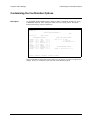
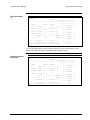
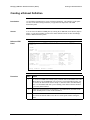
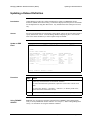
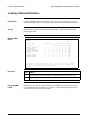
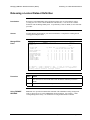
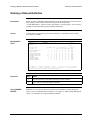
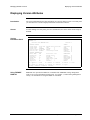
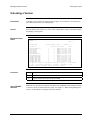
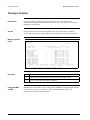
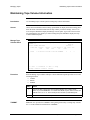
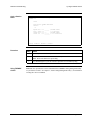
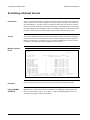
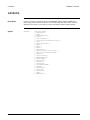
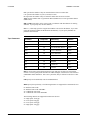
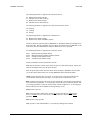
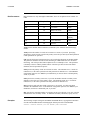
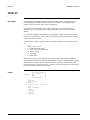
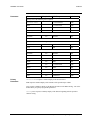
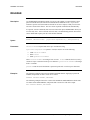
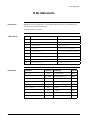
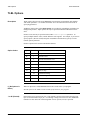
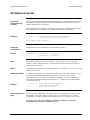
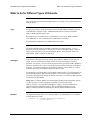
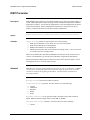
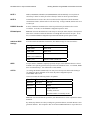
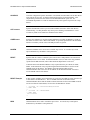
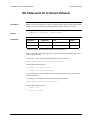
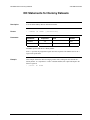
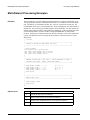
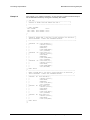
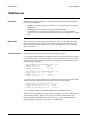
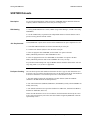
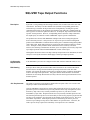
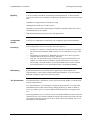
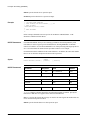
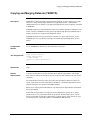
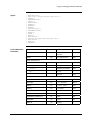
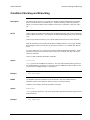
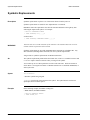
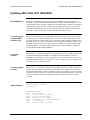
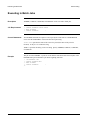
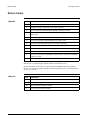
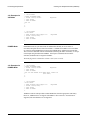
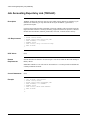
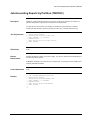
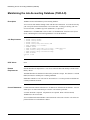
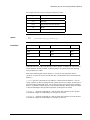
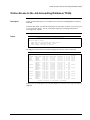
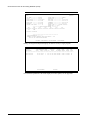
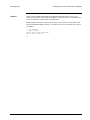
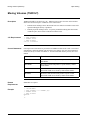
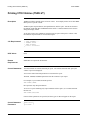
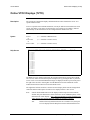
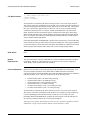
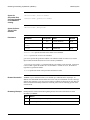
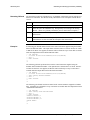
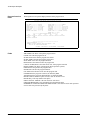
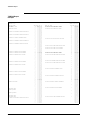
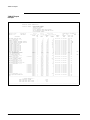
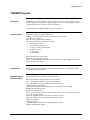
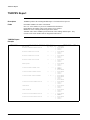
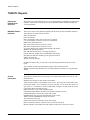
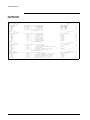
Use the Modify Profile Defaults panel to enable or disable confirmation prompts to a variety
of BIM-EPIC functions, and to change the default level for a catalog search. The $EPIC
default profile always requests confirmation.
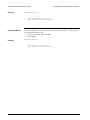
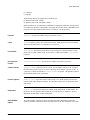
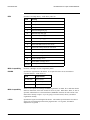
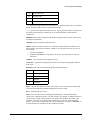
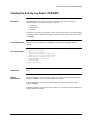
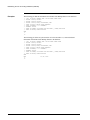
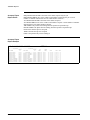
TSIO0303.8 ------ BIM-EPIC - User Profile Definition ----------COMMAND ===>
USER=SJA
** MODIFY PROFILE DEFAULTS **
More: Profile: SJA
Model: $EPIC
CONFIRMATION SETTINGS
Add Ver
Close
Define
Lock
Move
Release
Retain
Sys Opts
Unlock
F1=Help
===>
===>
===>
===>
===>
===>
===>
===>
===>
Y
Y
Y
Y
Y
Y
Y
Y
Y
F3=Return
Clean
Cycle
Delete
MCatalog
Purge
Rename
Scratch
Transfer
Update
LEVEL FOR CATALOG SEARCH
===>
===>
===>
===>
===>
===>
===>
===>
===>
F6=Update
Y
Y
Y
Y
Y
Y
Y
Y
Y
F7=Bkwd
Level ===> E
E = EDD
V = Version
( X = Exploded list )
SYSTEM PASSWORD PROMPT
Prompt on initial entry ===> Y
F12=Exit
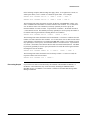
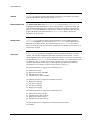
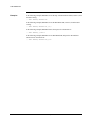
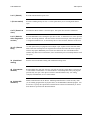
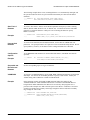
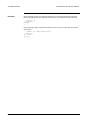
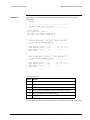
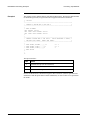
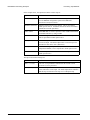
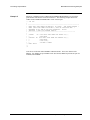
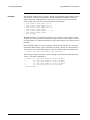
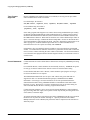
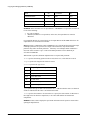
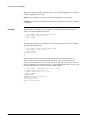
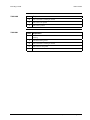
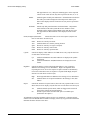
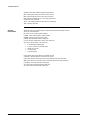
Change confirmation settings and Search Catalog level as desired. Press F6 to accept the new
settings. Press F7 to scroll back to previous User Profile Definition panels.
Chapter 2. BIM-EPIC Online Manager
2-15