1
2-63
Chapter 2: Creating a Contact Center Queue
Setting up the caller's hold experience
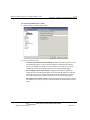
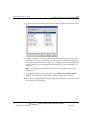
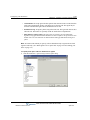
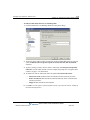
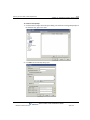
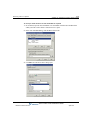
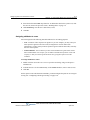
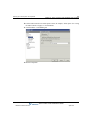
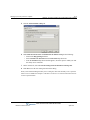
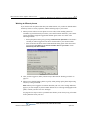
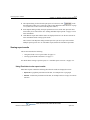
5 Optionally, select or create a condition under which this Hold prompt plays, as described in
“Creating conditional Hold prompts” on page 2-63.
6 Click OK to add the Hold prompt to the list on the Hold \ Prompts tab.
7 Click OK to save the queue as defined so far or go to the next section, “Creating conditional
Hold prompts.”
Creating conditional Hold prompts
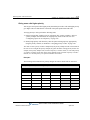
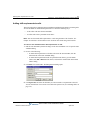
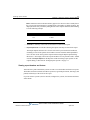
You can create Hold prompts that play only when a certain condition is met. For example, if the
estimated wait time on the queue is 10 minutes or longer, you could play a prompt that says,
“We are currently experiencing a heavy volume of calls. We recommend that you call back later
or leave a voice message.”
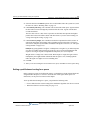
Conditional Hold prompts can either repeat in the repeat cycle or play only once. If they repeat,
the condition is checked each time through the cycle. For example, a prompt that played when
the estimated wait time was over 10 minutes would repeat until the wait time dropped below 10
minutes and then stop playing.
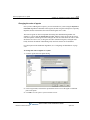
To create a conditional Hold prompt
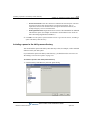
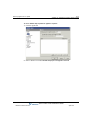
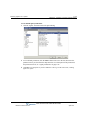
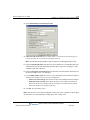
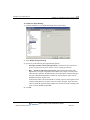
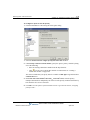
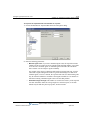
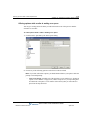
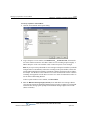
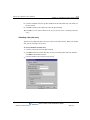
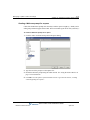
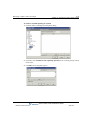
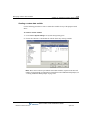
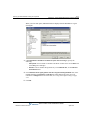
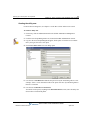
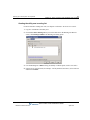
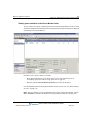
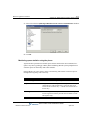
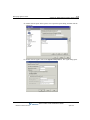
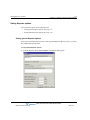
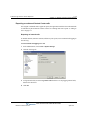
1 On the Hold \ Prompts tab in the Queue dialog, click Add. The Hold prompt dialog opens.
2 Enter the general information and create the audio for the Hold prompt as shown in the
previous section, “Creating Hold prompts” on page 2-60.
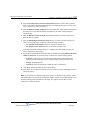
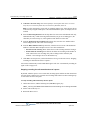
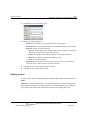
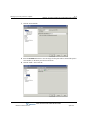
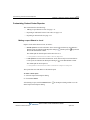
3 Select the Use the following condition checkbox
Wave Contact Center Administrator Guide
Release 2.0 Service Pack 1
April 2011