1
4 Setup
4.1 Picture, Sound, Ambilight
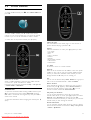
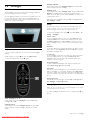
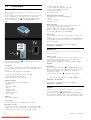
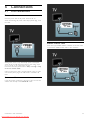
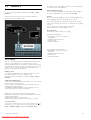
Smart settings
You can adjust each Smart setting with the settings in Picture or
Sound in Setup, TV settings. Adjust the brightness for a particular
Smart picture or adjust the bass for a Smart sound.
To return to the original smart setting values, undoing the
adjustments you made, first set up the TV in the smart setting
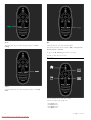
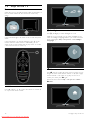
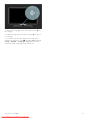
you want to reset. Then press h > Setup > TV settings, select
Reset, press OK and confirm.
Read more about Smart picture and sound settings in Help >
Use your TV > Watch TV > Smart picture and sound settings.
Picture
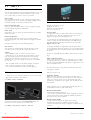
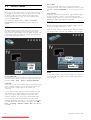
In the Picture menu, you can adjust all picture settings individually.
To open the Picture settings , press h > Setup > TV settings >
Picture.
• Contrast
Sets the contrast level of the picture.
• Brightness
Sets the brightness level of the picture.
• Colour
Sets the level of colour saturation.
• Hue
If NTSC is broadcast, hue compensates the colour variations.
• Sharpness
Sets the level of sharpness of fine detail.
• Noise reduction
Filters out and reduces the image noise in the picture.
• Tint
Sets the colours to Normal, Warm (reddish) or Cool (bluish).
Select Custom to set up your own personal settings in the
Custom menu.
• Custom tint
Use the slider bar to set the colour temperature of the picture.
• Perfect Pixel HD
Controls the advanced settings of the Perfect Pixel HD Engine .
— Perfect Natural Motion removes motion judder and
reproduces smooth movement, especially in movies.
— 200 Hz Clear LCD / 100 Hz Clear LCD gives a superior
motion sharpness, better black level, high contrast with a flickerfree, quiet image and a larger viewing angle.
— Super resolution enables superior sharpness, especially on
lines and contours in the picture.
— Colour enhancement makes the colours more vivid and
improves the resolution of details in bright colours.
• PC mode
Sets the TV to the ideal pre-defined computer setting if a
computer has been connected.
• Light sensor
Adjusts the picture and Ambilight settings automatically to the
lighting conditions of the room.
• Picture format
Read Help > Use your TV > Watch TV > Picture format.
• Screen edges
Slightly enlarge the picture to hide distorted edges.
• Picture shift
Move the picture up / down or left / right with the cursor keys.
Sound
In the Sound menu, you can adjust all sound settings individually.
To open Sound settings , press h > Setup > TV settings >
Sound.
• Bass
Sets the level of low tones in the sound.
• Treble
Sets the level of high tones in the sound.
• Surround
Sets the surround sound effect from internal speakers.
• Headphones volume
Sets the volume for the headphone connection of the TV.
• Auto volume levelling
Reduces sudden volume differences like at the beginning of
adverts or when switching from one channel to another.
• Balance
Sets the balance of the left and right speakers to best fit your
listening position.
Ambilight
Read the chapter Ambilight in Help > Use your TV > Ambilight.
Eco settings
Eco settings bundle the TV settings that help the environment.
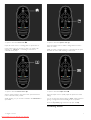
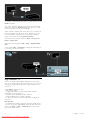
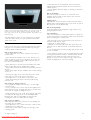
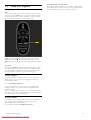
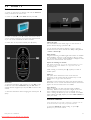
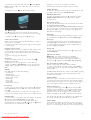
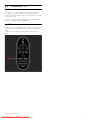
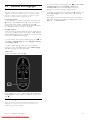
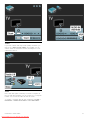
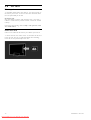
While watching TV, press the Green key to open Eco settings.
Active settings are marked with a ê.
Press again to close.
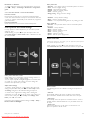
Energy saving
This Smart picture setting sets the picture, together with
Ambilight, in the most ideal energy conscious setting. To switch
on, select Energy saving in Eco settings and press OK.
To switch off Energy saving, select another Smart picture in the
s Adjust menu.
— Perfect contrast sets the level at which the TV automatically
enhances the details in the dark, middle and light areas of the
picture.
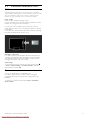
Mute screen
If you only listen to music, you can mute the TV screen to save
energy. Select Mute screen and press OK. To switch the screen
back on, press any key on the remote control.
— Dynamic backlight sets the level at which power consumption
can be reduced by dimming the brightness intensity of the screen.
Choose for the best power consumption or for the picture with
the best brightness intensity.
— MPEG artefact reduction smooths the digital transitions in the
picture.
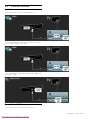
Light sensor
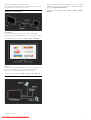
The built-in light sensor automatically adjusts the picture, together
with Ambilight, to the lighting conditions of the room. To switch
on, select Light sensor and press OK. To switch off, press OK
again.
Setup / Picture, Sound, Ambilight
Downloaded From TV-Manual.com Manuals
47