1
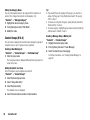
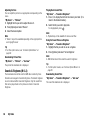
Finding a Name
“Contacts” → “Contacts List”
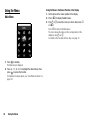
1. Enter the first few letters of the name.
Search results are displayed in alphabetical order.
Tip
• You can select the Contacts location from “Handset” or “SIM”
before searching.
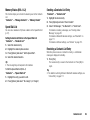
Dialling from the Contacts List
“Contacts” → “Contacts List”
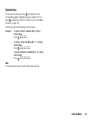
1. Highlight the desired entry and press D.
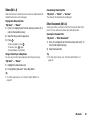
Tip
• If more than one phone number is registered for the entry, highlight
the desired phone number after step 1 and press D.
• You can also dial from the details screen of the Contacts List. On
the details screen, select the desired phone number and press D.
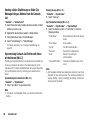
Editing Contacts List Entries
“Contacts” → “Contacts List”
1. Highlight the entry you wish to edit.
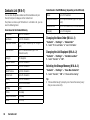
2. Press [Options] and select “Edit”.
3. Modify the information.
4. Press [Save] when finished.
36
Contacts List
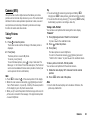
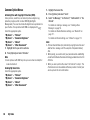
Adding a Thumbnail to Entries
“Contacts” → “Contacts List”
1. Highlight the desired entry.
2.
3.
4.
5.
6.
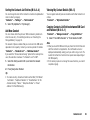
Press [Options] and select “Edit”.
Select “Picture”.
Select “Assign Picture”.
Select the desired picture.
Press [Save] when finished.
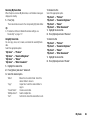
Note
• If you delete a picture in the handset memory, the corresponding
thumbnail is also deleted.