1
Windows
Step 2:
Install
Scratch Live
Mac
1. Insert the Software Installation CDROM and double-click the Scratch
Live Installer.mpkg icon. Or, launch the
installer downloaded from serato.com.
2. Follow the on-screen instructions. Once
the installation is complete, Scratch Live
will appear in your applications list. You
may like to drag the Scratch Live icon to
your dock for quick launching.
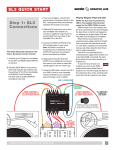
3. Plug in your SL4. No extra installation is
required to use Scratch Live.
4. The optional Rane Device Drivers
are required for other software you
may have that uses Core Audio to
communicate with your Rane device. To
install the Core Audio drivers, doubleclick the .pkg file inside the appropriate
product folder in the Rane Device
Drivers folder on the software installation
CD. Core Audio driver updates are
available to download from the product’s
page at rane.com.
2
It is important that Windows users install
the SL4 drivers as well as the Scratch Live
software. The easiest way is to allow the
Scratch Live installer to do all the work.
1. Connect your SL4 before you insert
your installation CD. When you first
connect, Windows will attempt to install
the drivers via the hardware wizard.
Cancel and close the hardware wizard.
2. Insert the Software Installation CD.
Make sure your SL4 is connected first.
If a window doesn’t open automatically,
browse to the CD drive. Run setup.
exe. Or, launch the installer you just
downloaded from serato.com.
3. Follow the on-screen instructions. Once
the installation is complete, Scratch
Live appears in the Start Menu under All
Programs > Serato > Scratch Live.
Because the SL4 was connected prior to
installing Scratch Live, no extra hardware
installation is required.
Additional Windows ASIO Drivers
Once Scratch Live is installed, any
additional hardware that is connected
will be recognized and the drivers will be
automatically installed.
Rane Device Drivers
The Scratch Live installer includes drivers
that allow the SL4 to act as a 10-in 10out external USB sound card for use
with third-party software applications
supporting Core Audio (Mac) and ASIO
(PC). These drivers allow multiple
programs to share the SL4 at the same
time. The SL4’s inputs and outputs may
be selected in the audio settings of other
applications when Scratch Live is not
open. The SL4 has two independent USB
ports, allowing simultaneous connection
of two computers. You can run Scratch
Live using Serato drivers on one port
while running other ASIO or Core Audio
software on the other. Driver updates
are also available to download from the
product’s page at rane.com. See “USB
Drivers” In the manual.
Step 3:
Virtual Deck
Setup
Each Virtual Deck in Scratch Live has a
unique input / output source, which you
can change to suit your DJ setup.
Starting with two turntables or CD
players, select these as your “Primary
Decks.” In a multi-deck setup, this defines
the sources that you will play the majority
of your tracks
from. Select your
Primary Decks in the
Hardware tab of the
Setup screen. See
“Select Primary
Decks” in the
manual.
To set a USB
Source in Scratch Live, click the
dropdown box above the Virtual Deck.
Change your Display Mode to
Classic Vertical mode if you don’t
see the dropdown above the Deck. We
recommend learning Scratch Live with
just two Decks. See “Display Modes” In
the manual.
Start with the Left Deck, select
“Channel 1.” This Deck is now controlled
by the turntable / CD player plugged into
Input 1 on the SL4, and the audio from
Scratch Live will be sent to Output 1.
On the Right Deck select “Channel 2.”
This Deck is now controlled by the
turntable / CDJ plugged into Input 2 on
the SL4, and the audio from Scratch Live
will be sent to Output 2.
Changing the Display to 4-Deck
Stack Mode allows you to see
and assign all four Decks at once. Your
Primary Decks will have a white border
around them. Repeat the above steps for
the remaining two Decks.
RANE SL4 FOR SERATO SCRATCH LIVE • QUICK START