1
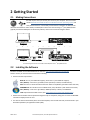
2 Getting Started 2.1 Making Connections Axe-Edit requires that you connect your Axe-Fx to your computer. Axe-Fx II owners should download and install the Axe-Fx II USB driver for their operating system and verify that the Axe-Fx II is successfully connected to the computer via USB (see the rd driver documentation for more details). Standard/Ultra owners must connect using a 3 party MIDI Interface (typically the M-Audio MIDIsport 2x2 Anniversary Edition). Refer to the connection diagrams below: Connection Diagrams for Axe-Fx II via USB and Standard/Ultra via a 3rd party MIDI Interface 2.2 Installing the Software Axe-Edit is available as a free download from our web site: http://www.fractalaudio.com/axe-edit Check to ensure you have the latest version before installing. Review minimum requirements: MAC OS: 10.5.7+ (2×4 USB Audio support); OS X: 10.4.2+ (2×2 USB Audio support). CPU / Memory: Intel Core 2 @ 1.6GHz (or PPC equivalent) or better, 512+MB memory. USB: There are no caveats with OS X other than USB 2.0 compatibility (all modern Macs offer this). WINDOWS OS: 32 or 64 bit versions of Windows XP, Vista, Windows 7 (with latest Service Pack). CPU / Memory: Intel Core 2 @ 1.6GHz (or AMD equivalent) or better; 512+MB RAM. USB: Chipset dated Jan 2006 or later. (See http://www.ayre.com/usb-192-windows.htm ). Double click the installer file and proceed through the steps to completion, being sure to review the README information displayed near the end. If it does not launch automatically when the install completes, start Axe-Edit manually. It will be found in your Start Menu (Windows) or Applications folder (Mac). DRAFT v0.51 Fractal Audio Systems | Axe-Edit Operation Manual 3