1
3.4 Select a Preset for Editing
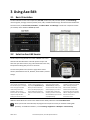
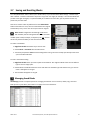
Once you have selected a source, you are ready to load and edit presets from within that source. There are three
ways to load presets in Axe-Edit:
1.
2.
3.
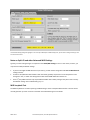
The Up and Down arrow buttons advance to the next and previous presets in the current source
The Preset Selector Menu lists presets in the current source for direct selection. (Note that Axe-Fx presets
000-383 are subdivided into three banks, a distinction which does not appear at all on the hardware)
Preset numbers may be entered directly after clicking the Preset Number Area of the main display.
3.5 Editing: Basic Parameter Changes
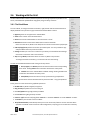
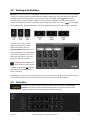
Once a preset is loaded, it will appear in the Grid Editor. Selecting a block highlights its outline and displays its
parameters in the Effect Editor. In the example below, the AMP1 block is selected. Note also the icon and name of
the effect shown in the upper left of the editor panel when it is selected.
Use the mouse to edit any knob, switch, list box, or control. Sound changes are heard on the Axe-Fx in realtime.
You can also click in the box above a knob to enter parameter values numerically from the keyboard. Double click
any knob to set it to its default value.
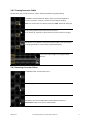
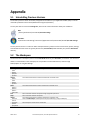
Page Select Buttons (shown at left) enable full access to effects with too many parameters to fit on a
single screen. The example here shows buttons for the five pages of the AMP block of the Axe-Fx II.
DRAFT v0.51
Fractal Audio Systems | Axe-Edit Operation Manual
9