1
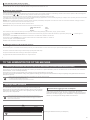
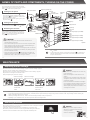
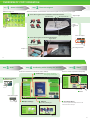
OVERVIEW OF OTHER OPERATIONS
Step
1
Select a
function
Fax
Step
2
Place the
original
Step
Place the original in the automatic
document feeder
Insert all the way
Do not pass this line
Align the edges
Tap
3
For functions other than copy.
Step
Scan
4
Step
Confirmation
5
Start
Transmission
Confirmation
Select the address
Face up/down
Orientation
Missing pages
Folded pages
Upward
E-mail
Adjust to
original size
Place the original on the document
glass
Tap
Align to corner
Placing a thick book
Storing
Downward
HDD file
retrieve
Lift open
Select the folder
Tap
Scan and store the file
16
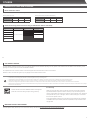
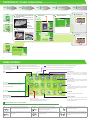
HOME SCREEN
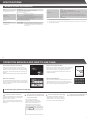
The home screen is the first screen to be displayed. Touch an icon to display the
corresponding screen. When the
button is pressed on the operation panel, this home
screen is displayed.
*The actual screen displayed may vary depending on the model or how the machine
has been customized.
Image send The scanned original is sent to the specified destination.
E-mail The scanned original is attached to an e-mail and sent.
Fax The scanned original is sent using the telephon line.
Copy
FTP/Desktop
The scanned original is printed.
The scanned file is sent to a specified
directory of an FTP server or to a specified
folder on a computer connected to the
network.
Network folder
The scanned original is sent to the specified
shared folder on a computer connected to the
Windows network.
Scroll area
Up to 12 icons are displayed.
Icons that are not displayed can be displayed
by scrolling horizontally.
PC scan
A TWAIN-compliant application on a computer
connected to the network is used to scan a
document or image.
Fixed area
Job status
Up to 10 icons are always displayed.
Displays the status of the current job.
HDD file retrieve
The scanned original is saved.
Saved data can be edited and used again for another
operation.
System settings
Allows various settings to be adjusted
according to how the machine will be used or
its current state of use.
Operation Guide
Refer to the Operation Guide when you have
questions about operating the machine.
OPERATING THE TOUCH PANEL
In addition to the conventional "single tap" operation, you can also operate the touch panel using long touches, flicks, and slides.
Tap
Touch and then quickly release the finger.
Used to select keys, tabs, checkboxes, etc.
Double-tap
Lightly strike the touch panel two times.
Used to change the preview display mode, or
enlarge the preview image.
Slide
Slide the finger on the scroll bar to move up or
down through a long list.
Long-touch
Touch a key and keep the finger on the key for
a short time.
Flick
Flick (quickly swipe with the finger) to scroll
the preview image.
Drag
Drag (slide the finger in the desired direction)
to rotate or delete original pages displayed as
a preview.
13