1
R E D D S M C O P E R AT I O N G U I D E
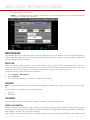
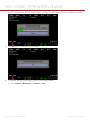
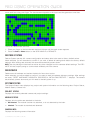
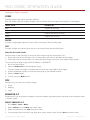
touch each box using your finger. The touchscreen responds to the touch and the green box turns blue.
To exit the Touchscreen Self-Test:
1. Place your finger on the touchscreen and hold it there until the main screen appears.
2. Press the Enter or Menu button on the SIDE HANDLE or REDMOTE.
RESTORE SYSTEM
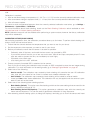
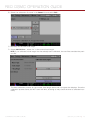
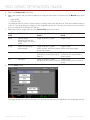
Restore System permits ALL camera configuration and setup data to be reset to factory default values.
When selected, you will be asked to confirm if you want to delete all settings and restore the factory default
settings. After settings are restored, the camera automatically powers down.
NOTE: User key settings will be reset as well as any other changes from the cameras default settings. The REDMOTE will also require paring to communicate wirelessly with the camera.
REDISCOVER
Rediscovers all hardware and caches the data for future boot cycles.
When selected, you will be asked to confirm if you want to reset all hardware discovery settings. After settings
are reset, “RESET HARDWARE DISCOVERY SUCCESSFUL, INITIALIZING RESTART…” displays. The camera
automatically powers down and you will need to manually power it up.
SYSTEM STATUS
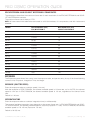
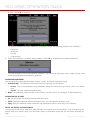
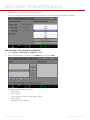
The System Status menu displays key project and system information on the following tabs: Project Status,
Module Status, Camera Info.
PROJECT STATUS
Displays the currently selected camera and project settings.
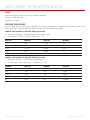
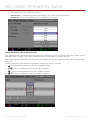
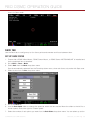
MODULE STATUS
Displays which modules are attached to the brain.
Not Detected: The module is either not attached, or is not detected by the brain.
Attached: The module is attached and detected.
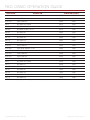
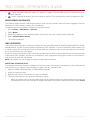
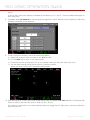
CAMERA INFO
Displays the following camera information:
COPYRIGHT © 2013 RED.COM, INC 955-0020_V5.1, REV-A |
82