1
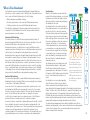
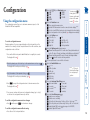
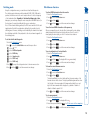
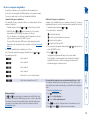
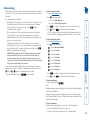
To select a computer using the mouse buttons to choose Cycle only active ports 3 Press to accept the setting and return to the main menu section. 4 Press and then to exit the menu and save changes. 2 Press and then press either: to choose Cycle all ports, or Choosing which computers are accessed when using mouse buttons The computer channels that are visited when you use the mouse buttons (or hotkeys + tab/autoscan) are determined by a setting within the Configuration menu: 1 Enter the Configuration menu. To select a computer using the mouse buttons 1 Hold down the middle button (or scroll wheel) of the mouse. 2 Click the left mouse button to increment the channel number or click the right mouse button to decrement the channel. When the correct channel is reached, release the middle button. When using this method of switching: • The computer channels that are visited depend upon the configuration menu setting (see note ). • The ports (KVM, audio and/or USB) that are switched using this method depend upon the switching mode that is currently set using the front panel buttons. Using the mouse buttons, you can quickly switch the keyboard, mouse, video monitor(s), speakers and/or USB peripherals to any computer channel. Note: These procedures work only with three-button or IntelliMouse devices and only if the ‘Mouse Switching’ option has been enabled. 20