1
Other useful features
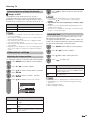
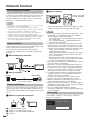
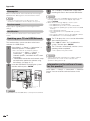
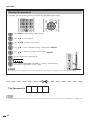
wUsing the operation panel
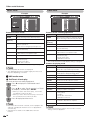
wUSB media menu
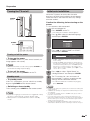
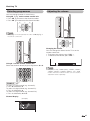
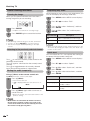
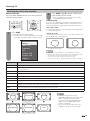
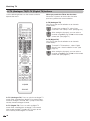
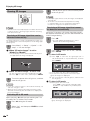
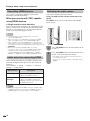
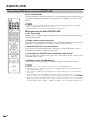
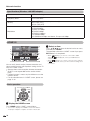
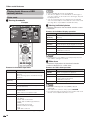
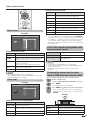
You can use the operation panel for video playback
operations.
You can call up this operation panel by pressing
CONTROL on the remote control unit or selecting
“Control (USB media)” from “Menu” s “Setup”
s“Optioin” s “Option for view”.
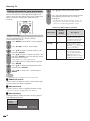
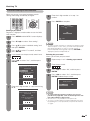
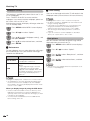
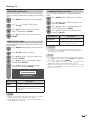
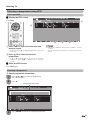
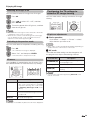
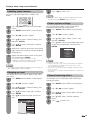
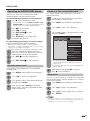
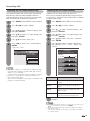
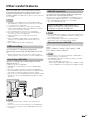
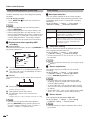
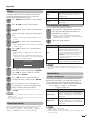
ESet/Reset all auto play
Option
Set or reset the video to be played back.
1
Press B to display the “USB media menu”
screen.
2
Press a/b to select “Set all auto play” or “Reset
all auto play”, and then press ENTER.
PLAY
• When you select “Set all auto play”, checkmarks
are added to all the video files.
• When you select “Reset all auto play”, remove all
the checkmarks from all the video files.
3
Audio
Title
[
Resume
jump
Press ENTER to play back the video.
NOTE
• See page 87 for details on the “USB device removal”
function.
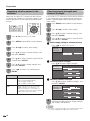
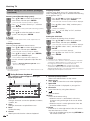
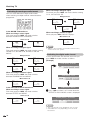
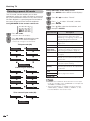
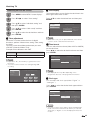
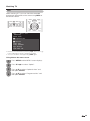
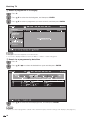
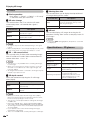
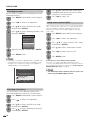
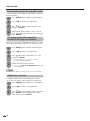
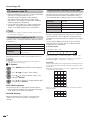
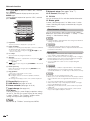
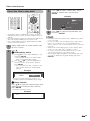
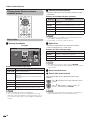
ETitle/Chapter
This function can be used for files without a title list or
chapters. Select the title or chapter you want to play
back.
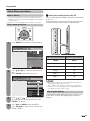
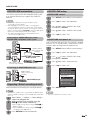
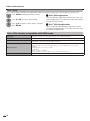
G
Hold down to go in reverse.
d
Starts playback.
J
Hold down to fast forward.
K
Video without chapters: Press once to
return to the previous playback point.* Press
twice to return to the previous file. Video
with chapters: Press once to return to the
previous chapter. Press twice to return to the
previous file.
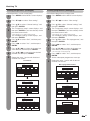
1
Press B to display the “USB media menu”
screen.
2
Press a/b to select “Title” or “Chapter”, and
then press ENTER.
F
Sets pauses and still pictures.
L
Video without chapters: Press once to
advance to the next playback point.* Press
twice to display the next file. Video with
chapters: Press once to advance to next
chapter. Press twice to advance to next file.
3
Press a/b to select the desired title or
chapter, and then press ENTER.
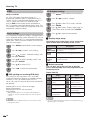
Audio
Change the audio when multiple audio is
available for the video you are watching.
H
Playback stops.
[
(Subtitle)
Each time you press [ (Subtitle) on the
remote control, the subtitle switches. Title
Displays the title list.
Resume
jump
Jump to the scene where playback was last
stopped.
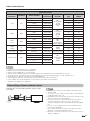
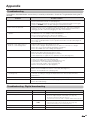
* During playback of a file without chapters, playback points
are set automatically. Playback points are set at intervals of
a one-tenth of playback time.
Example for a file with a playback time of 100 minutes:
Playback points are set every 10 minutes. Pressing L
once after viewing the file for 15 minutes jumps to the
20-minute playback point.
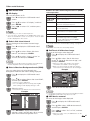
• The selected title or chapter is played back.
• “0-9” is displayed for files without chapters.
Playback jumps to the playback point of the
selected number.
NOTE
• If there is edition information, this screen is displayed when
the title is selected.
• See page 87 for details on the “USB device removal”
function.
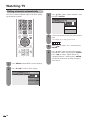
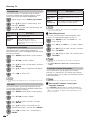
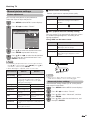
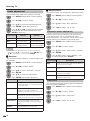
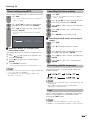
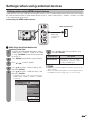
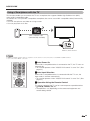
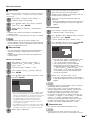
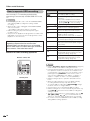
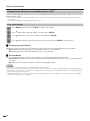
EShow video information
The information of the current file is displayed.
B to display the “USB media menu”
1 Press
screen.
2
Press a/b to select “Show video information”,
and then press ENTER.
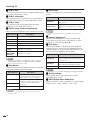
NOTE
• The key guide is shown when playback is resumed.
• Reverse/fast forward continues from one file to another
during continuous playback in the USB media mode. (Jump
forward/ back may not be available depending on the files
in the home network mode.)
89