1
Videos (M 6-2)
Video clips that are recorded by your phone’s video
camera or video clips that are downloaded from mobile
internet sites can be managed.
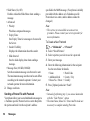
Playing Back Video Clip Files
“My Items” → “Videos” → “Saved Videos”
1. Select the file you wish to play back.
2. Press
.
To resume, press
again.
To stop playback, press [Back].
Note
• The volume varies depending on the Multimedia
Volume settings (p. 87). The sound is deactivated
when “Multimedia Volume” is set to “Silent”. To
adjust the volume, press
(or
/the side-up key)
or
(or
/the side-down key).
• Video clips exceeding 128 dots [W] or 96 dots [H]
can be displayed in original or half size by pressing
[×1] or [×1/2].
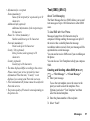
Sending a Video Clip File
“My Items” → “Videos” → “Saved Videos”
1. Highlight the file you wish to send.
2. Press [Options] and select “Send”.
3. Select “As Multimedia” or “Via Bluetooth“.
For details on creating a message, see “Creating a
New MMS” on page 53.
Note
• Video clips protected with a copyright cannot be sent
attached to a message.
Downloading Video Clip Files (M 6-2-3)
“My Items” → “Videos” → “More Videos”
The video clip file download site is displayed.
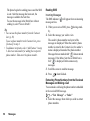
Sending My Items Data
Choose the appropriate menu. See page 82
(Connectivity) for further information on Bluetooth
wireless technology.
“My Items” → “Pictures” → “Saved Pictures”
“My Items” → “Sounds” → “Saved Sounds”
“My Items” → “Videos” → “Saved Videos”
1. Highlight the desired file.
2. Press [Options] and select “Send”.
3. Select “Via Bluetooth”.
For “Via Bluetooth”
The phone starts searching for Bluetooth wireless
technology enabled devices within 10 metres.When
detected, a list of enabled devices is displayed allowing
you to select the desired device. The connection can be
established and the file sent.
My Items
67