1
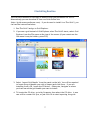
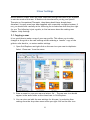
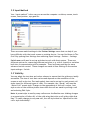
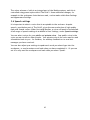
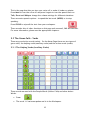
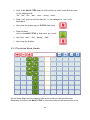
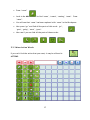
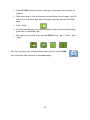
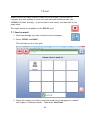
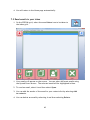
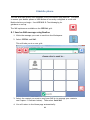
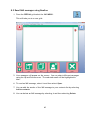
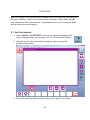
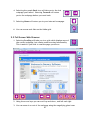
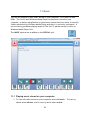
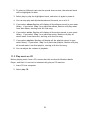
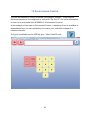
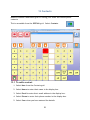
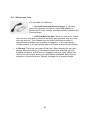
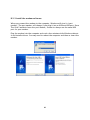
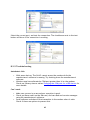
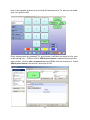
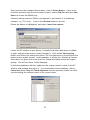
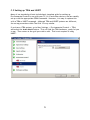
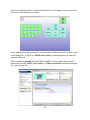
B.3 Connect a mobile phone to The Grid 2 with Bluetooth The Grid 2 allows you to send and receive SMS text messages via some bluetooth mobile phones. Please see the list above for compatible phones. These instructions are to guide you through the process of setting up your computer and mobile phone to communicate, and then set up The Grid 2 to find your mobile phone. B.3.1 Install your bluetooth adaptor The first step is to install your bluetooth adaptor. Usually this will be a small USB device. Your computer may already have Bluetooth, in which case you do not need to follow this step. When you connect it to your computer, Windows w ill detect it (which may take a few minutes). When it is ready, you will have a notice saying "your new hardware is installed and ready to use." B.3.2 Edit your Grid 2 user The Grid 2 stores separate mobile phone settings for each user. Select the user that you want to send/receive SMS messages. Select Edit > User Settings from the menu. Select Workspace Settings > Mobile phone from the categories. B.3.3 'PAIR' your phone to your computer The next step is to 'pair' your phone with your computer. Bluetooth works by 'pairing' devices (such as a computer and a phone) so that they have permission to control each other. Click on the Windows Bluetooth Settings button in The Grid 2. These instructions are for Microsoft Bluetooth Drivers. If nothing happens when you click on Bluetooth Settings, you probably have an adaptor that uses the Widcomm driver. The process is similar, but some buttons may have different text and some steps may take place in a different order. In Bluetooth Devices, click the button Add... Ensure that your phone has Bluetooth turned on, tick the box and click Next. Select your phone from the list of available devices, and click Next. Allow Windows to choose a passkey and click Next. A message will come up on your phone saying that your computer is trying to connect. Type the passkey into your phone. Windows will establish connection with your phone. Click Finish to close the Wizard. In the Bluetooth Devices window, select the COM Ports tab. 69