1
6
Lay Out a UI Using GUIDE
Set the Window Position or Size to an Exact Value
1
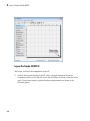
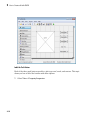
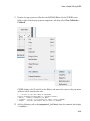
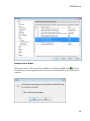
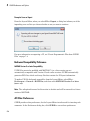
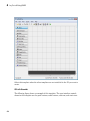
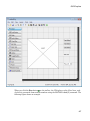
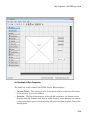
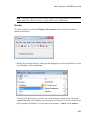
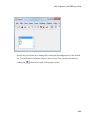
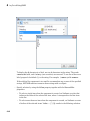
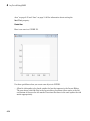
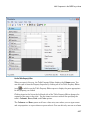
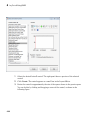
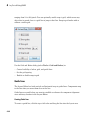
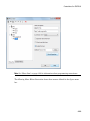
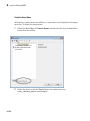
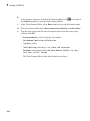
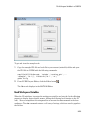
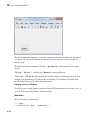
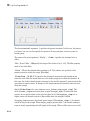
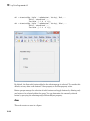
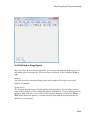
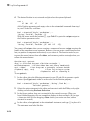
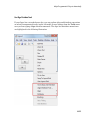
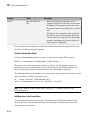
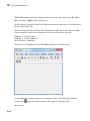
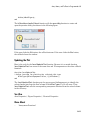
In the Layout Editor, open the Property Inspector for the figure by clicking the
button (with no components selected).
2
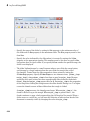
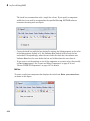
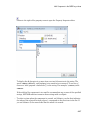
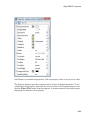
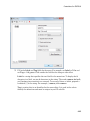
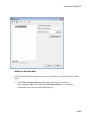
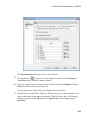
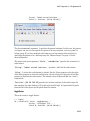
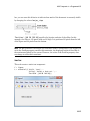
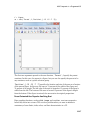
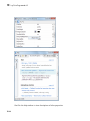
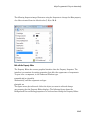
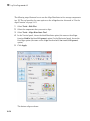
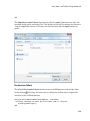
In the Property Inspector, scroll to the Units property and note whether the current
setting is characters or normalized.
3
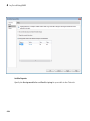
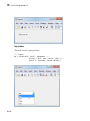
Click the down arrow at the far right in the Units row, and select inches.
4
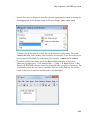
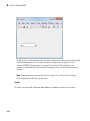
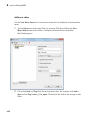
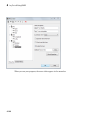
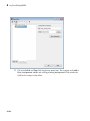
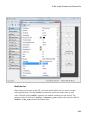
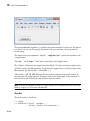
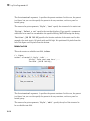
In the Property Inspector, display the Position property elements by clicking the +
sign to the left of Position.
5
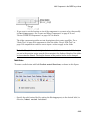
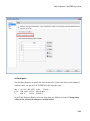
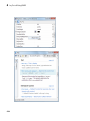
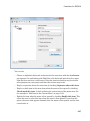
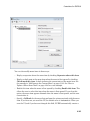
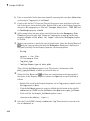
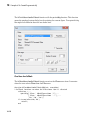
Change the x and y coordinates to the point where you want the lower-left corner of
the window to appear, and its width and height.
6
Reset the Units property to its previous setting, as noted in step 2.
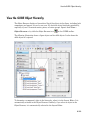
Maximize the Layout Area
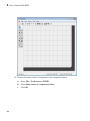
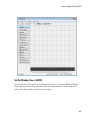
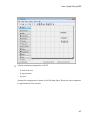
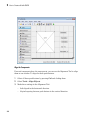
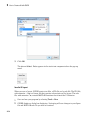
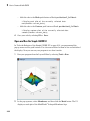
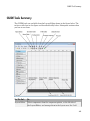
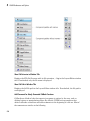
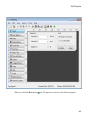
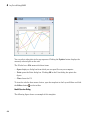
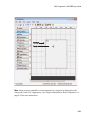
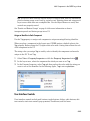
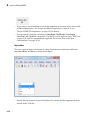
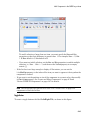
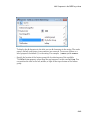
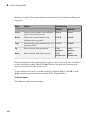
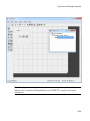
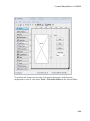
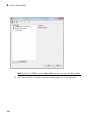
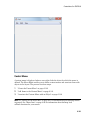
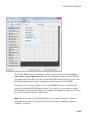
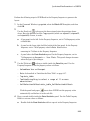
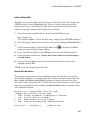
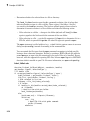
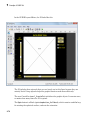
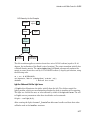
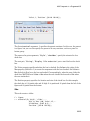
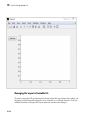
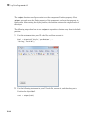
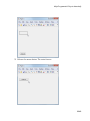
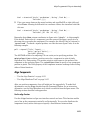
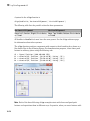
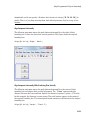
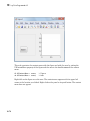
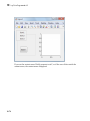
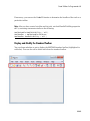
You can make maximum use of space within the Layout Editor by hiding the GUIDE
toolbar and status bar, and showing only tool icons, as follows:
6-12
1
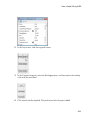
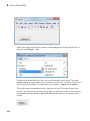
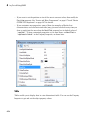
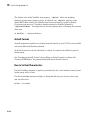
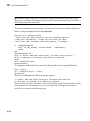
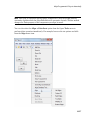
From the View menu, deselect Show Toolbar.
2
From the View menu, deselect Show Status Bar.
3
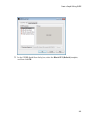
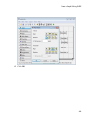
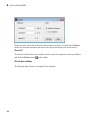
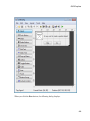
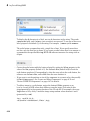
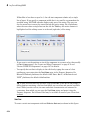
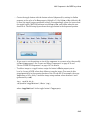
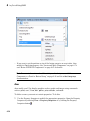
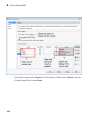
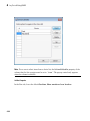
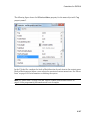
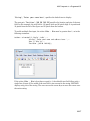
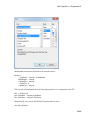
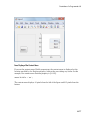
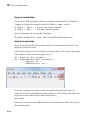
Select File > Preferences, and then clear Show names in component palette