1
Operation of Universal Remote Control (Continued)
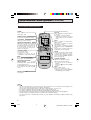
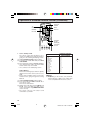
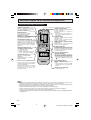
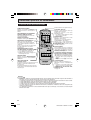
DVD/VCR
POWER
POWER
DVD
VCR
TV
TV
POWER
DISPLAY
INPUT
INPUT
REMOTE
KEYPAD
1
2
3
4
5
6
7
8
DISPLAY
9
ENTER
FLASHBACK
0
100
PERSONAL PREFERENCE
A
B
C
D
CH
VOL
—
VOL
+
CH
MENU
•
MUTE
CATV
TV
DVD
VCR
REW
PLAY
FF
PAUSE
STOP
REC
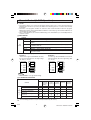
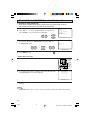
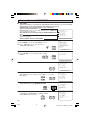
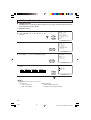
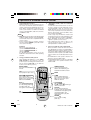
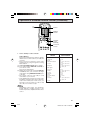
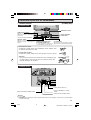
How to identify a DVD
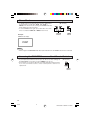
The remote control may already be set to
operate your DVD. Try this initial check before
going on to the following “identifying” section.
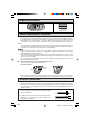
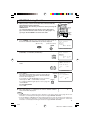
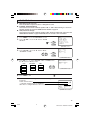
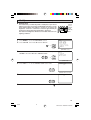
(1) Slide CATV/DVD-TV/VCR switch to DVD.
(2) Point Remote towards DVD and press DVD/
VCR POWER.
(3) Does the Remote turn the DVD ON and OFF?
• If yes, the Remote is ready to operate the DVD
and no further steps are needed.
• If no, continue to the “identifying” section.
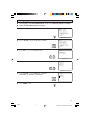
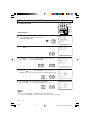
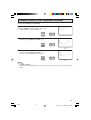
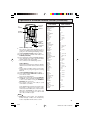
Setting Method.
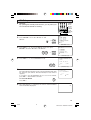
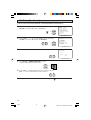
Refer to the following steps and list to quickly
find the remote control code for your accessory
DVD.
• First look up your DVD’s remote control code
number before going through the Setting
Method.
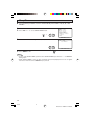
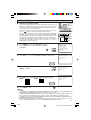
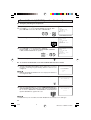
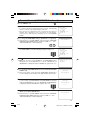
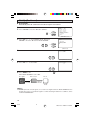
(1) Slide CATV/DVD-TV/VCR switch to DVD.
(2) Press and hold down INPUT and CH s on
your remote control.
Then release both buttons.
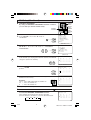
(3) Within 10 seconds after releasing INPUT and
CH s, enter your DVDs two-digit remote
control code number using REMOTE KEYPAD
(refer to the list).
• The remote control is now ready to send
commands to your DVD.
CHANNEL
UP (a)/
DOWN (s)
CATV/DVDTV/VCR
CH/SKIP
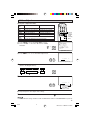
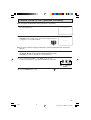
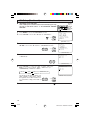
DVD BRAND
Denon
JVC
Magnavox
Marantz
Mitsubishi
Panasonic
Philips
Pioneer
Proscan
RCA
Samsung
Sharp
Sony
Toshiba
Yamaha
Zenith
REMOTE CONTROL
CODE NUMBER
02
09
04
04
06
02
04
08
03
03
07
01, 10
05
04
02
04
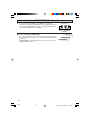
Note:
Depending on the model, year produced,
brand, and type of DVD, some models may
not be compatible with the remote control.
42
20F640
42
Dimension: 140 X 215 mm