1
Basic component configuration
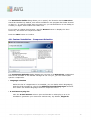
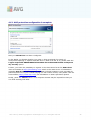
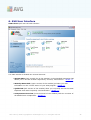
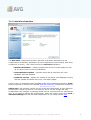
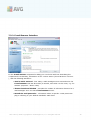
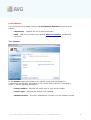
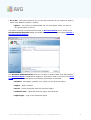
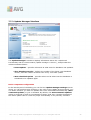
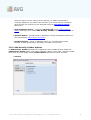
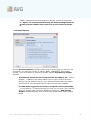
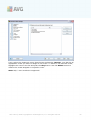
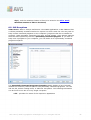
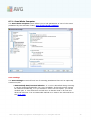
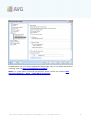
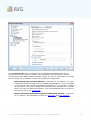
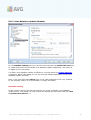
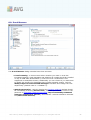
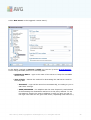
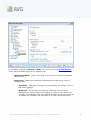
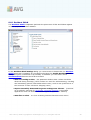
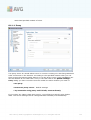
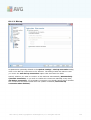
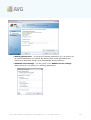
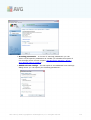
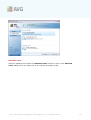
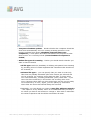
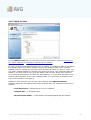
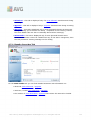
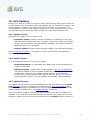
In the bottom part of the dialog you can find the section named E-mail Scanner
settings where you can edit some elementary features of the component's
functionality:
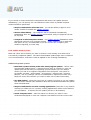
· Scan incoming messages - check the item to specify that all e-mails deliver
ed to your account should be scanned for viruses. By default, this item is on,
and it is recommended not to change this setting!
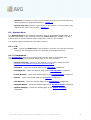
· Scan outgoing messages - check the item to confirm all e-mail sent from
your account should be scanned for viruses. By default, this item is off.
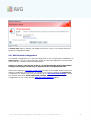
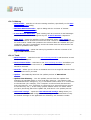
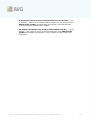
· Display notification icon while E-mail is being scanned - during the scanning
the E-mail Scanner component displays a notification dialog informing on an
actual task the component is processing (connecting to server, downloading a
message, scanning the message, ...). This option is activated and cannot be
edited.
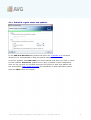
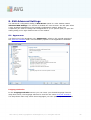
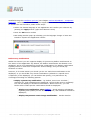
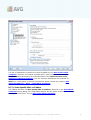
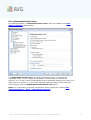
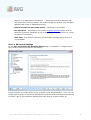
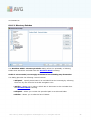
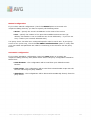
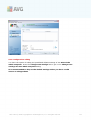
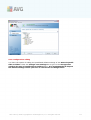
The advanced configuration of the E-mail Scanner component is accessible via the
File/Advanced settings item of the system menu; however advanced configuration
is recommended for experienced users only!
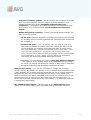
Please note: The software vendor has set up all AVG components to give optimum
performance. Unless you have a real reason to do so, do not change the AVG
configuration. Any changes to settings should only be performed by an experienced
user. If you need to change AVG configuration, select the system menu item Tools /
Advanced settings and edit the AVG configuration in the newly opened AVG
Advanced Settings dialog.
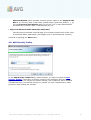
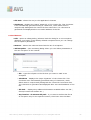
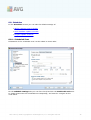
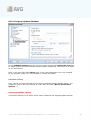
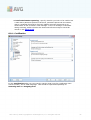
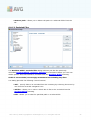
Control buttons
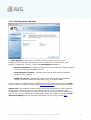
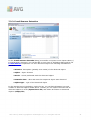
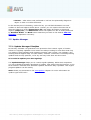
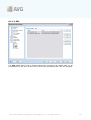
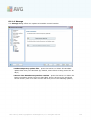
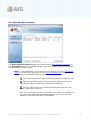
The control buttons available within the E-mail Scanner interface are as follows:
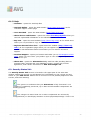
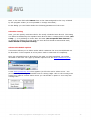
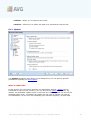
· Save changes - press this button to save and apply any changes made in this
dialog
· Cancel - press this button to return to the default AVG user interface (
components overview)
AVG 9 Free © 2009 C opyright AVG Technologies C Z, s.r.o. All rights reserved.
40