1
Q. Can I do scheduled motion recording on the DVR?
A. After setting up a schedule in the Schedule Menu, you can select in the Camera Menu
whether you want the cameras to record constantly, on motion/alarm only, or both.
LIVE VIEWING:
Q. When I zoom in I can go only right and left how can I go up and down?
A. To go up and down press the Enter button. To go back to right and left, press it again.
Q. How can I change to a different number of viewing screens?
A. By pressing the Mode button you can go through the different screen options.
Q. How can I select different cameras in different quadrant?
A. Press the Select button and then press the desired camera button in each quadrant to
display that camera in the quadrant.
COPYING:
Q. What kind of device can I use to archive video on the DVR?
A. On both the EDR and the EDVR, you can insert a USB flash memory drive into the
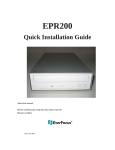
DVR's USB port on the front of the unit. You can also connect our EPR200 DVD+RW
drive to the EDR's USB port. The EDVR has a built-in DVD burner for the same
purpose.
Q. Can I use the USB port to record live images?
A. No, the Copy Menu is used for archiving recorded video only.
Q. I get an "Invalid Input" error while trying to archive video.
A. There are several possible causes for this error. First, verify that the end time is not
earlier than your start time. Second, check that the date and time you are trying to copy
exists on the hard drive you are copying from. Finally, make sure that the total copy time
is no larger than two hours.
Q. I get a "USB Process Fail" error while trying to archive video.
A. This means that the USB device was not connected properly. Disconnect from the
USB port and restart both the DVR and the device (if possible). If you are using a DVD
drive, make sure that you are using formatted DVDs and that you do not insert the disc
until after connecting the USB to the DVR.
DVR OPERATION:
Q. How does the system password work?
A. In the System Setting Menu, change the Password option to "enable" and then exit
from the menu. If you let the unit sit for 30 seconds without touching any buttons, it will
automatically log out to the lowest level. Press any button and enter the password to log
back in.