1
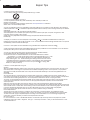
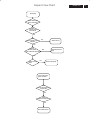
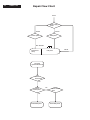
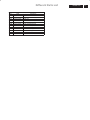
Trouble Shooting
200W6 LCD
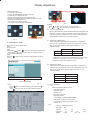
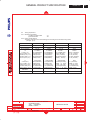
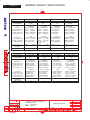
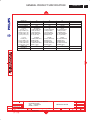
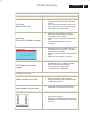
Common Problems
Having this problem
Check these items
•
No Picture
(Power LED not lit)
•
•
•
No Picture
(Power LED is amber or yellow)
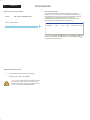
Screen says
•
•
•
•
•
•
AUTO button not working
properly
•
Make sure the power cord is plugged into
the power outlet and into the back of the
monitor.
First, ensure that the power button on the
front of the monitor is in the OFF position,
then press it to the ON position.
Make sure the computer is turned on.
Make sure the signal cable is properly
connected to your computer.
Check to see if the monitor cable has bent
pins.
The Energy Saving feature may be
activated
Make sure the monitor cable is properly
connected to your computer. (Also refer to
the Quick Set-Up Guide).
Check to see if the monitor cable has bent
pins.
Make sure the computer is turned on.
The Auto Function is designed for use on
standard Macintosh or IBM-compatible
PCs running Microsoft Windows.
It may not work properly if using
nonstandard PC or video card.
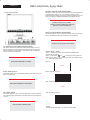
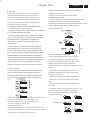
Imaging Problems
•
•
Press the Auto button.
Adjust the image position using the
Horizontal Position and/or Vertical Position
in OSD Main Controls.
•
Check that the signal cable is properly
connected to the graphics board or PC.
•
•
Press the Auto button.
Eliminate the vertical bars using the Clock
Adjustment of VIDEO NOISE in OSD Main
Controls.
Display position is incorrect
Image vibrates on the screen
Vertical flicker appears
69