1
5
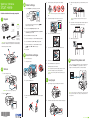
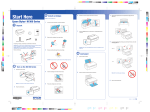
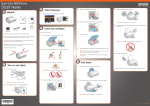
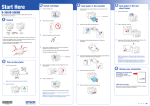
7 Install software
M
ac OS® X 10.4 only: When you see this screen, click
Add Printer & Fax. Follow the steps on the right side of the
screen to add your printer. Click Next to continue, if necessary.
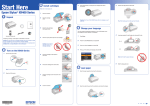
1 Make sure the printer is NOT CONNECTED to your
indows®: If you see a Found New Hardware screen, click
W
Cancel and disconnect the USB cable. You can’t install your
software that way.
6 Follow the on-screen instructions to install the rest of the
software and register your printer.
7 When you’re done, remove the CD.
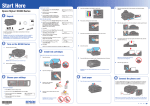
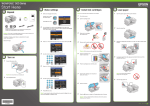
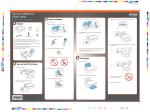
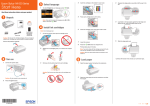
Turn power LCD display Clear settings
on/off
screen
for the mode
you’re using
User’s Guide
Genuine Epson Paper
Click the desktop shortcut to access the online User’s Guide,
software downloads, Epson Supplies CentralSM, and more
(requires an internet connection).
Epson offers a wide variety of papers to meet your needs;
visit Epson Supplies Central for more information.
Stop/
Clear Settings
B&W
Color
W
indows: If you see the AutoPlay window, click
Run Setup.exe. If you see the User Account Control screen,
click Yes or Continue.
Macintosh®: Double-click the
Presentation Paper Matte
mooth, non-glare, instant-drying
S
paper for scrapbooks, newsletters, and
graphical presentations.
Set to receive faxes
automatically
Genuine Epson Inks
2 Insert your product CD.
Try Epson paper with DURABrite® Ultra Ink for professional
results. For the right supplies at the right time, you can
purchase them at Epson Supplies Central at
www.epson.com/ink3 (U.S. sales) or www.epson.ca
(Canadian sales). You can also purchase supplies from an
Epson authorized reseller. To find the nearest one,
call 800-GO-EPSON (800-463-7766).
Quick Guide
Control panel
Need paper and ink?
Basic instructions for copying, printing, faxing, and scanning.
computer.
Any questions?
Select Copy Navigate Start copy
or Fax mode menus
or fax (B&W
or Color)
Auto Answer
On-screen help with your software
Speed Dial/
Group Dial
Select Help or ? when you’re using your software.
Redial/Pause
Epson Technical Support
Enter fax
One-touch
numbers for dial buttons
dialing
Epson icon.
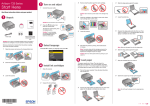
3 Click Install and follow the on-screen instructions.
Any problems?
You see error messages on the printer’s LCD
screen.
See your Quick Guide for troubleshooting information.
Setup is unable to find my printer after connecting it
with a USB cable.
4 When prompted, connect the USB cable. Use any open
Visit epson.com/support (U.S.) or epson.ca/support
(Canada) where you can download drivers, view manuals, get
FAQs, or e-mail Epson.
You may also speak with a support specialist by calling
• U.S.: (562) 276-4382, 6 AM – 8 PM, Pacific Time, Monday
through Friday, and 7 AM – 4 PM Saturday.
• Canada: (905) 709-3839, 6 AM – 6 PM, Pacific Time, Monday
through Friday
Days and hours of support are subject to change without
notice. Toll or long distance charges may apply.
Look for the numbers
below to find your
cartridges. It’s as easy
as remembering your
number!
WorkForce 320 Series Ink Cartridges
Moderate-capacity
(For lighter use)
Standard-capacity
Black
124
125
Cyan
124
125
Magenta
124
125
Yellow
124
125
Color
Software Technical Support
ABBYY® FineReader® (408) 457-9777
www.abbyyusa.com
support@abbyyusa.com
Make sure it is securely connected as shown:
USB port on your computer. Make sure the printer is
turned on.
Epson is a registered trademark, Epson Exceed Your Vision is a registered logomark, and
Supplies Central is a service mark of Seiko Epson Corporation. WorkForce and DURABrite
are registered trademarks, and Designed for Excellence is a trademark of Epson America,
Inc.
General Notice: Other product names used herein are for identification purposes only and
may be trademarks of their respective owners. Epson disclaims any and all rights in those
marks.
This information is subject to change without notice.
© 2010 Epson America, Inc. 4/10
Printed in XXXXXX
CPD-27925