1
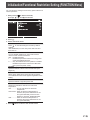
Menu Items
nSETUP
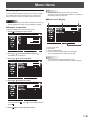
THERMAL SENSOR SETTING
Sets the orientation of the temperature sensor. Change this
setting if you change the installation orientation (vertical or
horizontal) of the monitor.
LANDSCAPE....... horizontal orientation
PORTRAIT.......... vertical orientation
LANGUAGE
Sets the display language for the menu screen.
nOPTION
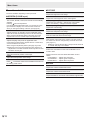
COLOR SYSTEM
Sets the color system (PAL / PAL-60 / SECAM / NTSC (3.58)
/ NTSC (4.43)) that is sent from the AV device connected
to the AV video input terminal. If AUTO does not operate
correctly, specify an appropriate color system.
AUDIO OUTPUT
Sets the volume of sound output from the audio output
terminal.
When set to VARIABLE 2, sound will not be output from the
built-in speaker.
VARIABLE1.........You can adjust the volume using VOLUME.
VARIABLE2.........You can adjust the volume using VOLUME.
FIXED..................Fixes the sounds.
INPUT SIGNAL (D-SUB input)
If a computer connected to the PC D-sub input terminal
outputs any of the following resolutions, make a selection
from the following options.
480 LINES...........AUTO, 640x480 or 848x480
768 LINES...........AUTO, 1024x768, 1280x768, 1360x768, or
1366x768
1050 LINES.........1400x1050 or 1680x1050
nUSB
EFFECT
Selects the effect when the images in the USB flash drive
are shown as a slideshow.
INTERVAL
Sets the interval between slides.
Depending on the format and size of the image files, the
interval may not always be fixed.
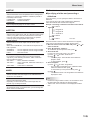
LIST
Shows the list screen. In the list screen, you can change the
folder used for the slideshow.
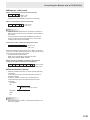
List screen
nSpecifying a folder and presenting a
slideshow
In the list screen, you can specify the folder to be used for a
slideshow.
If you want to play music while presenting the slideshow,
select the audio file first and then the image file.
Example : Presenting a slideshow of the data in the Folder A.
*
Folder A
Image file A
Image file B
Audio file A
Folder B
Folder C
* Root folder
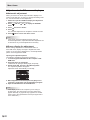
Start from the list screen. If the list screen does not appear,
select LIST in the USB menu to display the list screen.
or
to
1. Move the cursor to the root folder and press
select “Folder A”.
to display “Folder A”.
2. Press
.
To move back up to the previous level, press
3. Select audio file.
If you do not want to play music, go to step 4.
or
to select “Audio file A”.
(1) Press
.
(2) Press
• The music plays. The audio files in the folder are
played in order.
.
• To stop playback, press
4. Select Image file.
or
to select “Image file A”.
(1) Press
• You can select image file that is in a different folder.
.
Select the folder and then press
.
To move back up to the previous level, press
.
(2) Press
• The slideshow starts. The image files in the folder are
displayed in order.
TIPS
• If there are a large number of files, it is convenient to store
the image files and audio files in separate folders.
• “Album” and “Year” information is not displayed for WMA
files.
19
E